Gifts, Wish Lists and Payouts

We updated Kitely Market today with several features and bug fixes. The new features include public and private wish lists, the ability to buy gifts for other users, and more.

Gifts

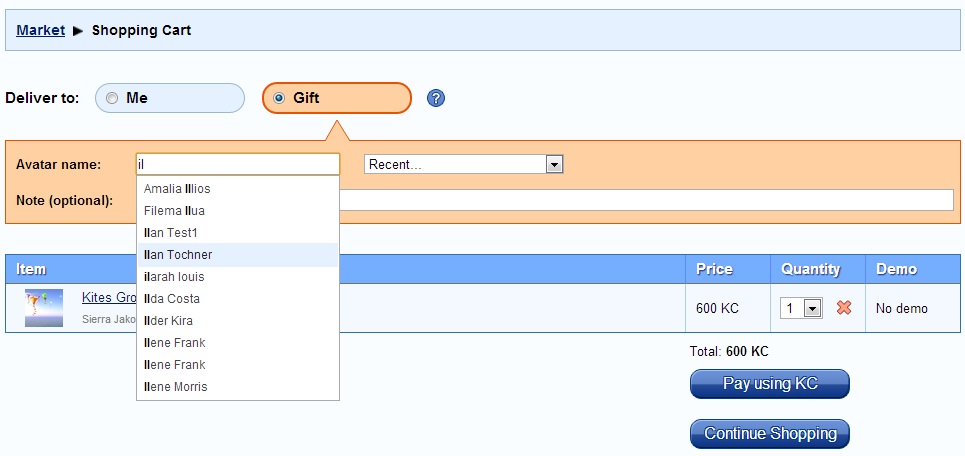
It is now possible to buy products in Kitely Market for other people. To do so, first add the product to the shopping cart as usual, and then in the cart select the delivery type “Gift”.

Buy Gift

You can choose the avatar that will receive the gift in one of two ways. First, you can type in their name. The text box uses AutoComplete to make it easy to find the avatar that you’re looking for. Second, the “Recent” list contains avatars that you’ve given gifts to in the past, and avatars to whom you sent IM’s (but only from the website; not in-world).

When you buy a gift for someone, a transaction record appears in three users’ histories: the Buyer, the Receiver and the Seller. All three users also get email notifications.

Please note that our Gift feature works a little differently from the gift feature in Second Life Marketplace. In Second Life Marketplace you can add several products to your shopping cart, and give each product to a different user. But in Kitely Market the entire contents of the cart are always delivered to a single user. We chose this system because it’s simpler to use; this ease-of-use will be particularly important once we start delivering to avatars on other grids.

Wish Lists

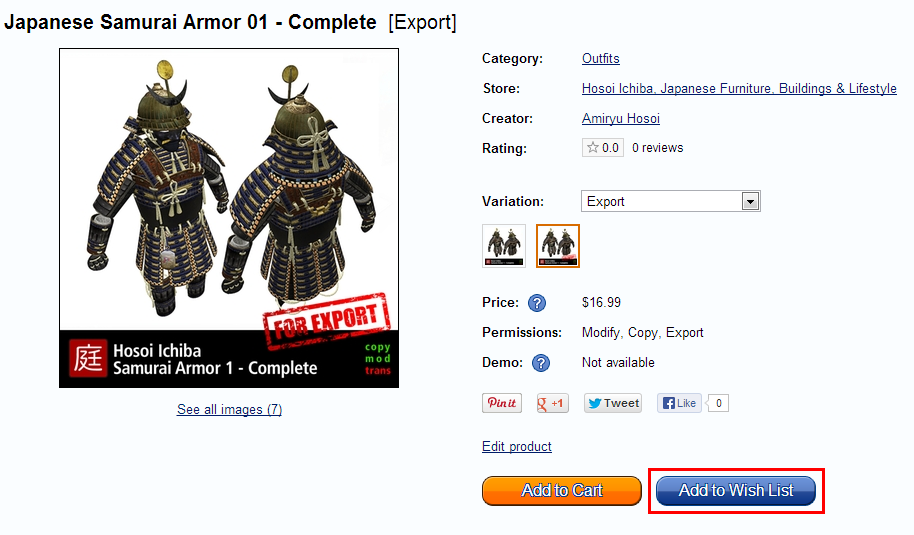
A Wish List contains items that you’d like to own. You now have two Wish Lists: a Public list and a Private list. The public wish list can be viewed by anyone, but the private wish list can only be viewed by you. To add an item to one of your Wish Lists, click on the “Add to Wish List” button.

Add to Wish List

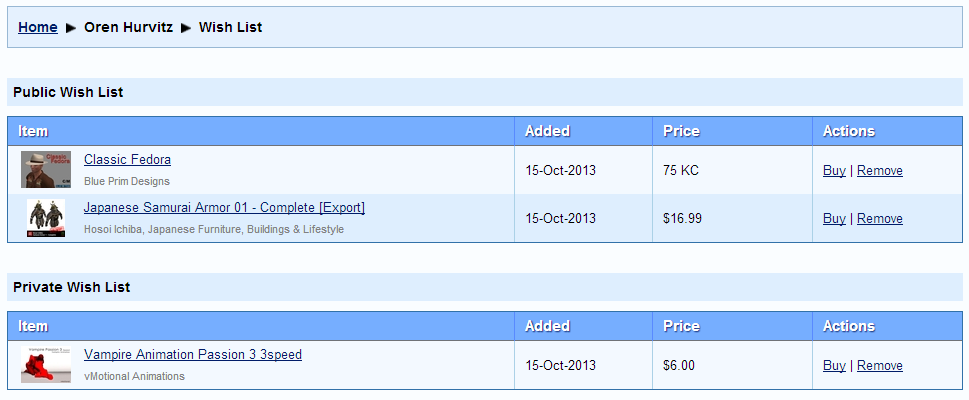
To view your Wish Lists, use the navigation menu at the top of the screen. Here’s what your Wish Lists looks like:

My Wish List
My Wish List

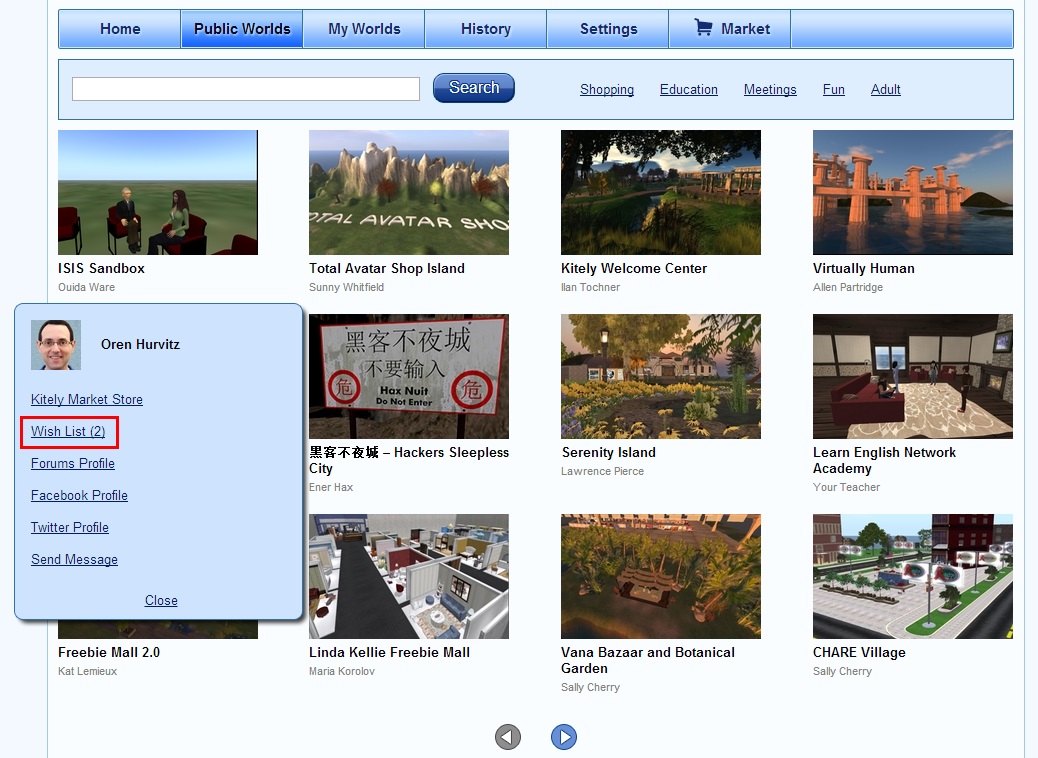
You can view other users’ Public Wish Lists by clicking on their name anywhere in the website, and then on the “Wish List” link. Note that this link only appears if they have items in their Public Wish List. For example:

public-worlds

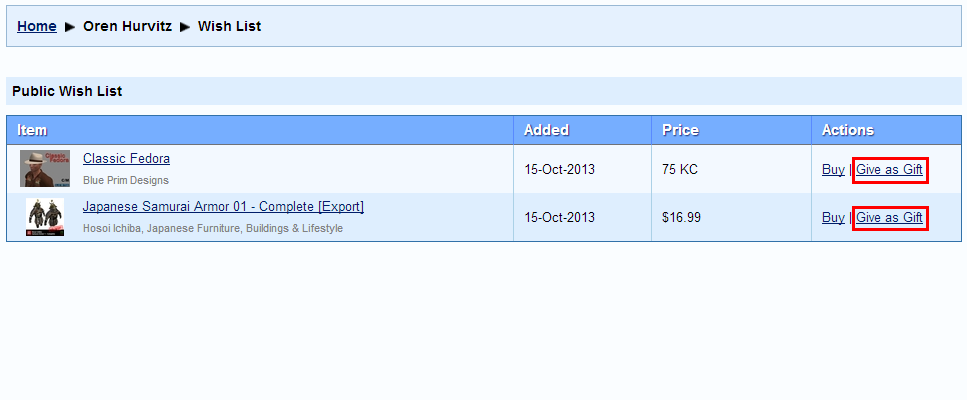
Next, here’s what your Wish List looks like when other people view it. Notice that they only see your Public Wish List (and not your Private Wish List), and also that they have the option to buy these items for themselves or have them delivered to you as gifts.

How Other Users See My Wish List

You should usually add items to your Public Wish List. This lets other people know which products you like, and they might use this list to know what to get you if they want to buy you something. You can keep the more naughty items on your Private Wish List…

View Payouts

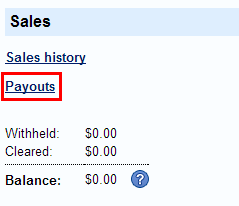
We are about to start transferring money in USD to merchants. In order to make it easier for merchants to keep track of the payouts that they’ve received (and the payouts that they will receive in the future), we now show the list of past and future payouts. In the Manage Store page we added a link to the Payouts page. That page contains a list of payouts that you’ve already received, as well as the Withheld and Cleared purchases (which will be included in future payouts).

Payouts Link

Other Improvements

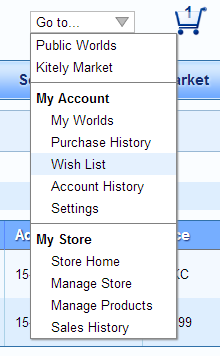
We’ve added many features to Kitely in the last couple of years, and as a result we have a lot of pages in our user interface so sometimes it takes two or three clicks to get to the page you want. To make navigation easier, we expanded the “Go to…” navigation menu significantly:

Navigation Menu
Navigation Menu

We’ve heard from our users that sometimes creating product descriptions is difficult because when copying text from other sources the text retains its formatting, which makes it appear wrong and also eats up the character limit (5000 characters) more quickly than plain text would. To fix this, we changed the text editors in Kitely Market so that pasting text always removes the text’s formatting, converting everything to plain-text. Note that you can still rearrange formatted text that’s already inside the editor, by selecting the text and dragging it with the mouse to the desired location.

We’ve also heard that when uploading multiple product pictures at once the order of the pictures is sometimes wrong. So now when you upload multiple files at once we sort them alphabetically before adding them to the product.

Changes to Kitely Market Permissions

We updated Kitely today with a few improvements to Kitely Market. We also fixed a longstanding OpenSim bug and contributed the patch to OpenSim.

Changes to Kitely Market Permissions

We made a change to the way we set item permissions when a merchant adds an item to the market. This is a subtle change, so it won’t affect most products, and in fact you may choose to skip reading this section… The change has to do with folded permissions. What are folded permissions? Well, every object in an inventory has two sets of permissions. The main permissions are what you usually see and set: Modify/Copy/Transfer, for Everyone/Next Owner. The folded permissions are a combination of the main permissions and the permissions of the items inside the object (if any).

For example, suppose you create a box with permissions Copy and Transfer (CT), and put inside it a script with just Transfer (T) permission. In this case, the box’s main permissions are CT, and its folded permissions are T. (Since the script is No-Copy, the object is made No-Copy as well in order to prevent making copies of the script by copying the object that contains it.)

The problem we found is that sometimes OpenSim doesn’t set the folded permissions correctly. For example, we’ve seen cases where OpenSim had set the folded permissions for an object lower than the permissions of the items it contained, and this caused the entire object to have fewer permissions than it should.

We decided to fix this problem by calculating the folded permissions ourselves, ignoring whatever OpenSim has done. We can do this because we know which items are contained in each object, so we know what the folded permissions should be.

We chose to deal with this problem in Kitely Market and not in OpenSim for two reasons. First, the permissions calculations in OpenSim are extremely complicated and we’re not sure we could fix them without creating other bugs in the process. Second, by moving this responsibility to Kitely Market we gain a measure of protection against future bugs as well; not just currently-known bugs.

This change won’t affect most products because in most cases OpenSim does calculate the folded permissions correctly. In cases where it didn’t, this change might add permissions to the parent object. For example, suppose you had created a box with permissions MCT, that contains items that are also MCT, but OpenSim had mistakenly set the box’s folded permissions to MT instead of MCT. This caused the box itself to get MT permissions as well, i.e. it became No-Copy. Today’s update will change the folded permissions to MCT, and therefore the box itself will also change to MCT, i.e. it becomes Copyable (as it should be).

Other Changes to Kitely Market

We fixed a problem that prevented some users from trying out the demo versions of products.

To protect brand names, we don’t allow creating a store with the same name as an existing store.

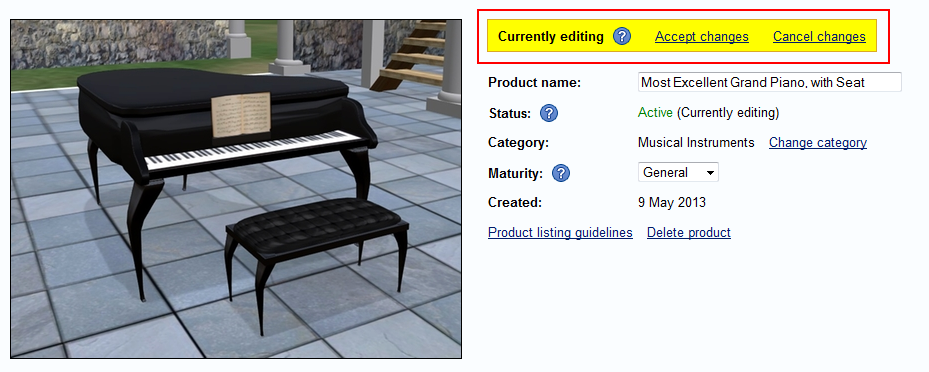
Some users have told us that when they finish editing a product they sometimes forget to Accept the changes, so the product isn’t actually updated in the market. To help merchants remember to Accept the changes, we added the yellow “Accept changes” panel to the bottom of the edit page (in addition to the top of the page, where it’s always been).

Fixed a Coalesced Objects Bug

We fixed a longstanding bug in OpenSim: when rezzing a coalesced object from a prim’s inventory, only the first sub-object was rezzed. For example, if you had a coalesced object that contains three boxes, and you rezzed it from a prim, then only the first box was rezzed. We fixed this bug, and contributed it to OpenSim; let’s hope it makes it into OpenSim 0.7.6.

In case you encounter this bug on a grid outside Kitely, you can use the following workaround: copy the coalesced object into your avatar’s inventory, and rez it from there. Of course this workaround requires people to actually know about it, so it’s better to just fix the bug.

Easier Attachment Creation and Kitely Market Improvements

We updated Kitely today with several bug fixes to OpenSim that will make it easier to build attachments. We also made several improvements to Kitely Market, and added a couple of features that had been requested by our users.

Bug Fixes in OpenSim

If an attachment was rezzed and then taken back into the inventory then it forgot its attach point and position, which forced you to set them from scratch. This affected mostly creators of attachments, because other people rarely rez their attachments on the ground. This bug has been fixed.

In addition to the in-world fix, the attach point and position are now also saved in exported OAR files. However, currently only Kitely recognizes these fields because this bug fix isn’t a part of OpenSim yet (see Mantis 4905). Therefore, export and import of such OAR files in Kitely will retain this information, but loading the OAR in a different grid will lose the data.

When editing an attachment while it’s attached to the avatar, if you moved the root prim by itself then all the other prims disappeared. (Actually they still existed, but were moved far away so they could no longer be seen.) This bug has been fixed.

When editing an attachment, other people couldn’t see the changes you made until the attachment was detached and reattached. Now other people will see the changes the moment you stop editing (technically, once the attachment is no longer selected).

We fixed a bug that prevented you from being able to resize objects to be larger than 10m.

We fixed a bug that prevented resizer scripts from being able to resize objects below 0.01m. (It was possible to resize below 0.01m by dragging the object directly, but not when using a script.)

We’ll contribute these bug fixes to OpenSim, where relevant (Mantis 4905 already contains the bug fix for one of the attachment bugs; it just hasn’t been accepted into OpenSim yet).

How to Use Multiple Attributes in Kitely Market

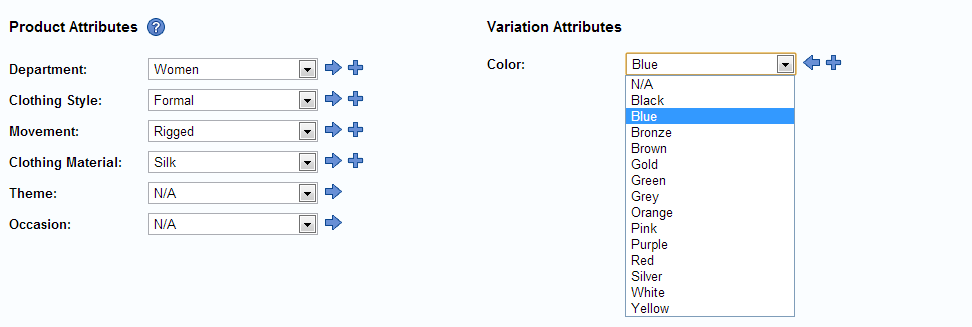
In Kitely Market, merchants use Attributes to help people find their products. For example, a merchant might assign the attribute “Color: Blue” to a dress, so that when people search for blue items they will see that dress.

Attributes

We allow merchants to assign multiple values to the same attribute. However, this capability should only be used when those values are equally dominant. For example, suppose the blue dress also contains yellow polka dots: it should still have only the Blue attribute, but not the Yellow attribute. That’s because when people search for yellow items they want to see items that are mostly yellow; not items that are mostly some other color (blue).

All of this was background; now we’ll describe the change that we’ve made. In order to make it easier for people to find the items they want, when searching for an attribute type we now show items that have only one attribute value of that type before items that have multiple attribute values. For example, if you search for Blue items then we’ll show the search results in the following order:

  1. Items that have only one color: blue.
  2. Items that have two colors, one of which is blue.
  3. Items that have three or more colors, one of which is blue.

This helps you when you’re looking for blue items because it makes the “bluest” items appear first.

Note that this change only affects the use of multiple values for a single attribute type, such as Color. This doesn’t affect the use of multiple attribute types for the product, such as Color, Theme, Movement, etc. It’s perfectly valid to assign as many different attributes types to the product as are relevant for it.

In addition, this change doesn’t affect search results where the attribute with multiple values isn’t one of the search criteria. In other words, if you’re not filtering items using their color then the number of colors that the item has doesn’t affect where it appears in the search results.

So, given all of this, should multiple attribute values ever be used? Yes, there are still some valid use cases. One valid use of two Color values would be for items that have colors that are both equally dominant, e.g. a blue and yellow striped shirt. This way the item will be included in search results for both Blue items and Yellow items. However, it will appear after items that have only one of these colors.

Another good use of multiple attribute values is for Bundles. If you create a bundle that contains several colors then it makes sense to assign many different Color attributes to it. But what about the problem that the bundle will appear lower in the search results? Our recommended solution is that in addition to the bundle, you also create one variation for each individual item. Each of these variations will have only one Color attribute, corresponding to the item’s color, and a picture that shows the item in that color. These single-color variations serve to promote the product: people are more likely to click on them than on the bundle variation because they show up higher in the search results (because they have only one color), and they have a picture that shows the product in exactly the color that the buyer is searching for. Once the buyer has clicked on the product they will be able to see that you also offer a bundle variation, and may choose to buy the bundle instead of just one color.

Other Kitely Market Improvements

We added a few attributes that our users have requested. These attributes can be used to better describe products in the market:

  • Colors: Gold, Silver, Bronze
  • Movement: Rigged

We’ve made it easier to find products using text search: when you search for a word that appears in a category or attribute we’ll automatically show products that belong to that category or attribute. (Previously it was necessary to click on the actual category or attribute link on the left side of the screen.) For example, if you search for the word “blue” then you’ll see all blue-colored products, even if the word “blue” doesn’t appear in their description (as long as the merchant has set the “Color: Blue” attribute on the product).

We’ve made a few improvements to the way we show errors when adding items to a product (if any errors are found, that is…). First, we now show different icons for Errors and Warnings. Second, when searching for asset UUIDs in scripts and notecards we now ignore comments: any UUID that appears after the characters “//” is ignored. Third, when showing warnings in scripts we specify the line number where the warning was found. And finally, we no longer show warnings for the standard textures that are built into viewers, such as the Invisiprim texture (e97cf410-8e61-7005-ec06-629eba4cd1fb).

We fixed a bug with the way we handle the Modify permission. Previously, if an object contained any No-Copy, No-Transfer or No-Modify items then we made the object itself also No-Copy, No-Transfer or No-Modify. But this behavior was only correct for the Copy and Transfer permissions, and not Modify, because it should be possible for Modify objects to contain No-Modify items. So now we allow that.

We don’t allow Demo items to be exported, even if the demo belongs to a product that can normally be exported. (Demo items are created when you click “Try demo” in the shopping cart. Demos are only available if the merchant has created a demo version of the product.)

Other Improvements

We added a checkbox in the Settings page that allows you to disable all the animations in the Kitely site, in case you prefer a more static user experience.

We added a checkbox in the Settings page that controls whether to send emails when you receive an Offline IM, and we made this setting On by default. Previously this setting was Off by default, and could only be changed in the viewer, so most people never enabled it and therefore they didn’t know when they received Offline IMs.

Tools For Finding and Fixing Problems in Products

Wow, we are floored! The response to our launch of Kitely Market has been overwhelming. In the week since it opened many people have used it to purchase items, and many more have visited the market and talked about it. There have also been some misconceptions about the market, and Ilan is busy correcting them throughout the internet… But in this post we want to introduce a new feature that we’re very proud of: a way to easily find and fix problems in products.

Fixing Problems in Products

Items sometimes contain errors. For example, a prim might be using a texture that doesn’t actually exist, because it was uploaded as a Local Texture. Kitely Market now detects such problems and helps the merchant fix them, to ensure that buyers get a problem-free item.

To demonstrate these capabilities we’ll use a real-world item that we found in the Diva Objects Library: Nebs Sculpted CampFire v1.2. As it turns out, this item contains two problems. We’ll use Kitely Market to find and fix these problems.

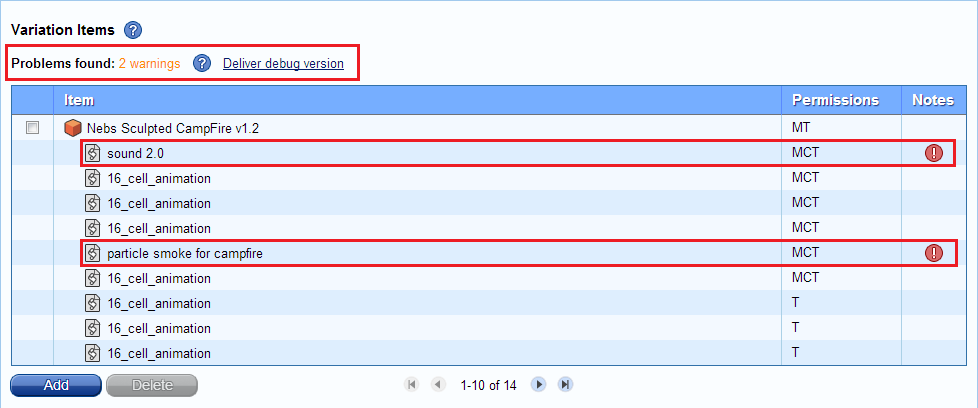
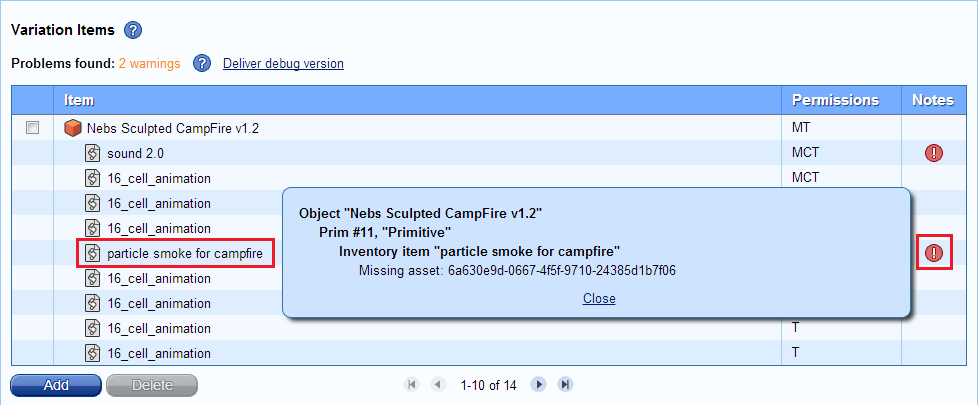
When you add items to a product, we now show if they contain any errors. We show the total number of errors and warnings, as well as an icon next to each specific item that has a problem. Here’s what you get when you add “Nebs Sculpted CampFire” to a product:

Items Table with Errors

In this example the problems are just Warnings (and not Errors), but the procedure to fix errors and warnings is the same. Click on the error icons to get more information about the errors. For example:

Items Table with Error Popup

This tells you that the problem lies in the object “Nebs Sculpted CampFire v1.2”; in a prim called “Primitive” (yes, we know that this name is unhelpful); and within that prim, in the inventory item called “particle smoke for campfire”, which contains a reference to a nonexistent asset.

The next step is to rez the item and find the prim that contains the problem. Here’s what the rezzed item looks like:

Sculpted Fire - Original

But how to find the correct prim? There are quite a few prims, and some of them are hidden deep inside the object. The prim name, “Primitive”, tells us nothing (use meaningful prim names, people!). The prim number (Prim #11) doesn’t help us either because we can’t see prim numbers in the viewer.

This is where we introduce a very nifty feature: the Debug Version. Click on Deliver debug version to get a special version of the product added to your inventory. This version contains several changes compared to the original item, that make it easy to find the problems:

  • Prims that contain problems are highlighted in red.
  • Prims are numbered. E.g., the prim that was formerly called “Primitive” is now called “Primitive (Prim #11)”.

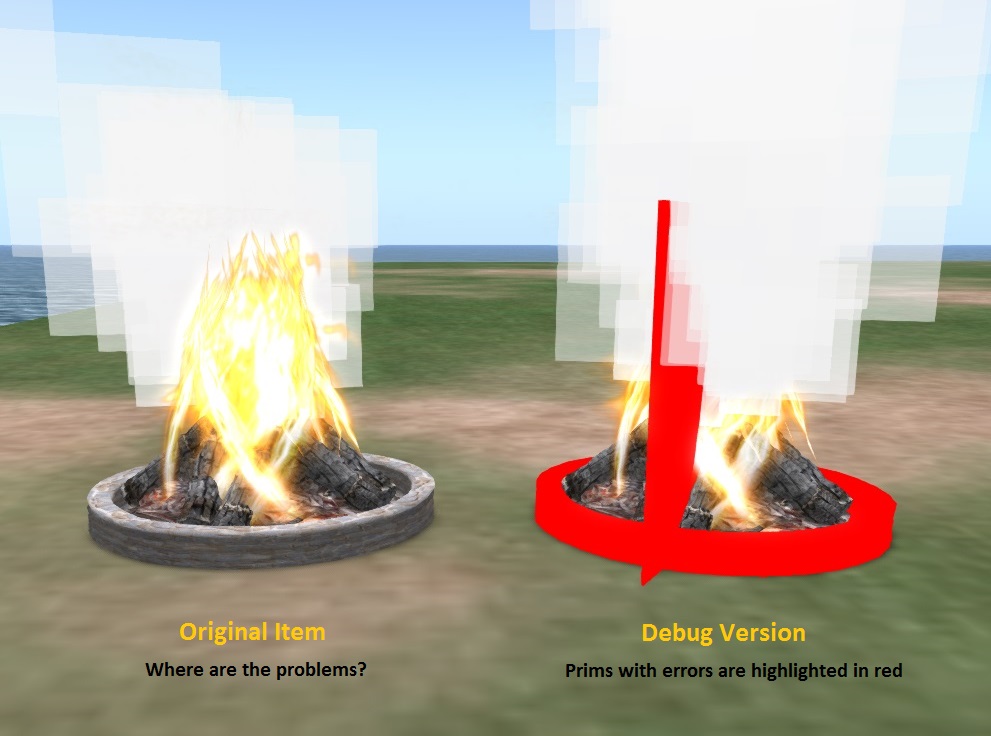
Let’s rez the debug version next to the original version, and compare them side-by-side:

Sculpted Fire - Side by Side

We can now easily see that the two problematic prims are the round base, and an invisible prim that stands perpendicular to the base.

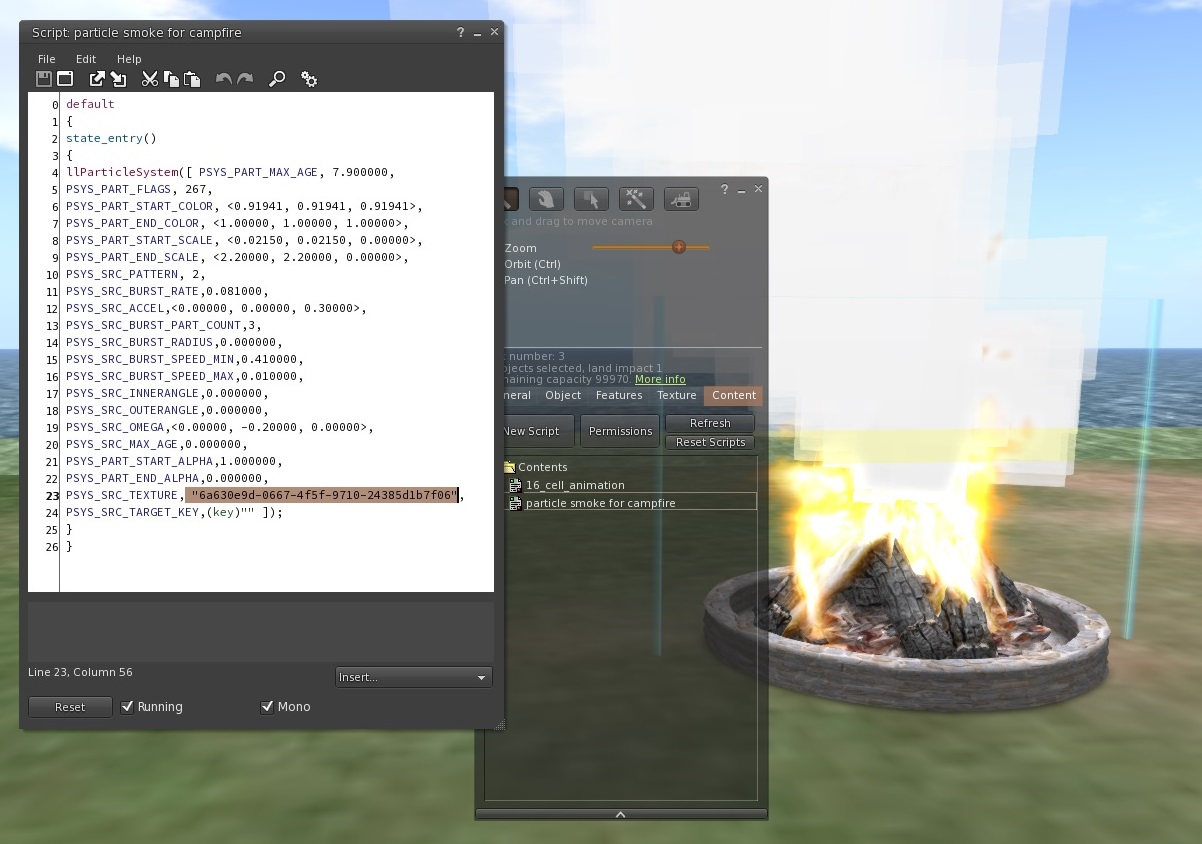
Using the debug version as a guide, we locate the corresponding prims in the original item and click on them. Now we see the problem: the particle-system script contains a hard-coded texture UUID. That UUID was probably valid on whichever grid the item was originally created on, but it doesn’t work on other grids.

Sculpted Fire - Show Error in Script

This problem wasn’t obvious because the default texture is white, and white is a pretty good color for smoke. We’ll never know what the smoke was actually supposed to look like. The solution to this problem is to add the smoke texture to the prim’s inventory, and change the script to load the texture from the inventory instead of by hard-coding a UUID. This is not shown here.

The other problem in this object is similar: another script refers to a Sound asset using a hard-coded UUID, but that asset doesn’t exist on any grid except the one where the object was created.

After fixing the problems, take the item back into your inventory and then add the fixed item to the product. The result: no more errors!

Redeliver Products

We made one more change today, to the Redeliver feature. Merchants can choose to redeliver purchased items to the buyer. For example, this feature is used if the original item had problems, which the merchant has fixed. Previously the Redeliver feature sent the buyer the same version that was originally bought, but this was unhelpful because it didn’t include the new fixes. Now Redeliver sends the latest version of the item instead.

Kitely Market is Open for Business

Kitely Market is now open for business! Kitely Market is a virtual goods marketplace that will create a unified market out of all the separate grids that make up the Hypergrid metaverse. This will enable content creators to make serious money, while setting up only a single web-based store. This is an ambitious project that we’ve been working on for more than 6 months, and we are very happy to finally be able to let you use it.

Overview

When we designed Kitely Market we had several examples in mind. First, we know that most users of virtual worlds are familiar with the Second Life Marketplace, since it’s the largest and most successful market for virtual goods. We therefore started out by making sure that Kitely Market will look familiar to people coming from Second Life. For example, we arranged products in a Categories tree that has a lot in common with the one used in Second Life. However, we didn’t stop there. Our goal wasn’t to copy the Second Life Marketplace — it was to create something better. So we continued by adopting some good ideas from popular e-commerce sites such as Amazon. For example, we use Attributes to make it easier for you to find the products you want (we talk more about attributes later). And finally we added some features that we haven’t seen anywhere else, because we do occasionally have original thoughts :).

The basic operation of Kitely Market is similar to existing virtual goods marketplaces. Merchants create Product listings using items in their inventory. Users browse the products and purchase them. Bought products are delivered directly to the buyer’s inventory.

Categories and Attributes

Categories and Attributes are both ways to search for items in Kitely Market. Each item belongs to one category: for example, Shirts or Musical Instruments. Each item may furthermore have many attributes. For example, a shirt may have these attributes: Color (red/blue), Department (men/women), etc. When you search for items you can search by any combination of text, category and attributes.

The following screenshot shows a sample search. In this example the user searched for products that have “mesh” in their description; have the “Black” Color attribute; have the “Modern” Theme attribute; and are sold with the “Modify” permission. The left side of the screen shows the currently selected filters, and the categories where matching products were found. You can click on these categories and attributes to further refine your search.
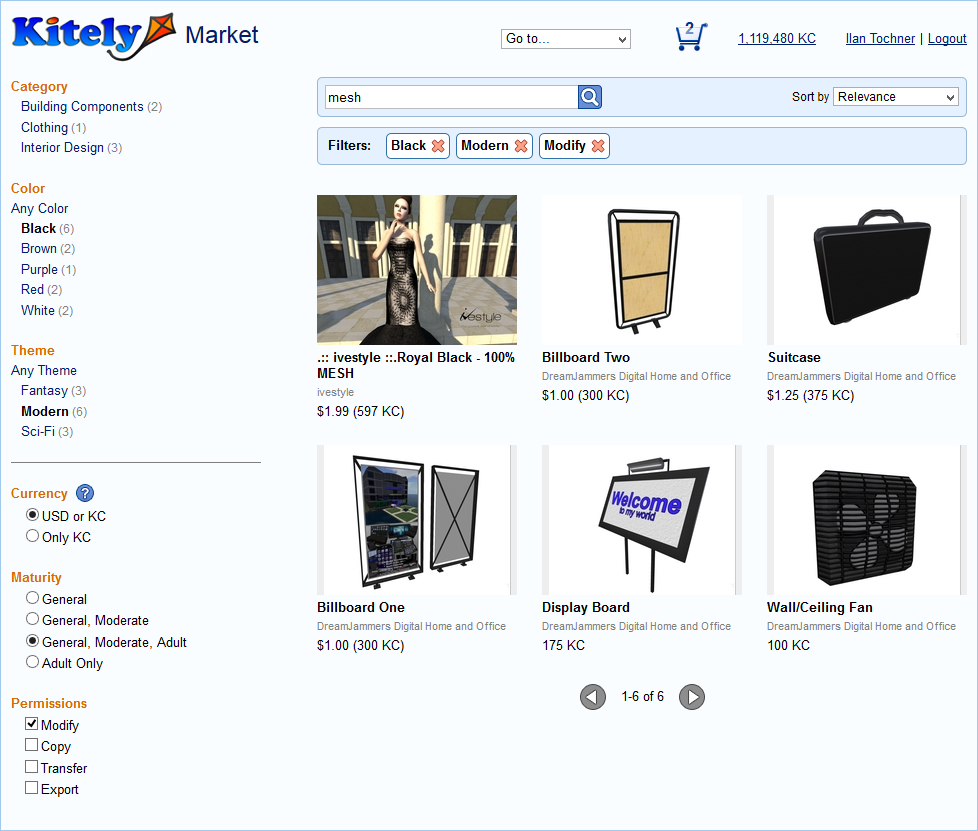
Kitely Market Search

The use of Attributes makes it easier to find items than when only Categories are available. It also reduces the number of Categories, which again makes it easier to find the items you are looking for. For example, the Second Life Marketplace includes several similar categories such as “Rings”, “Jewelry Sets”, “Valentine’s Day Jewelry” and “Wedding Rings”. This makes it difficult to find all the jewelry items because you have to look at each of these categories separately. And if you want to see only gold jewelry then you’re out of luck: you have to scroll through all the items in these categories. In contrast, Kitely Market makes it very easy to perform such searches. First, Kitely Market contains only one relevant category, called “Jewelry and Watches”, so you only have to search there. The reason that we can do this is that we’ve moved some of the categories used in Second Life into attributes. For example, we have attributes for Occasions (“Valentine’s Day”, “Wedding”).  Furthermore, you can specify the attribute “Color: Yellow” in order to see only gold jewelry.

Variations
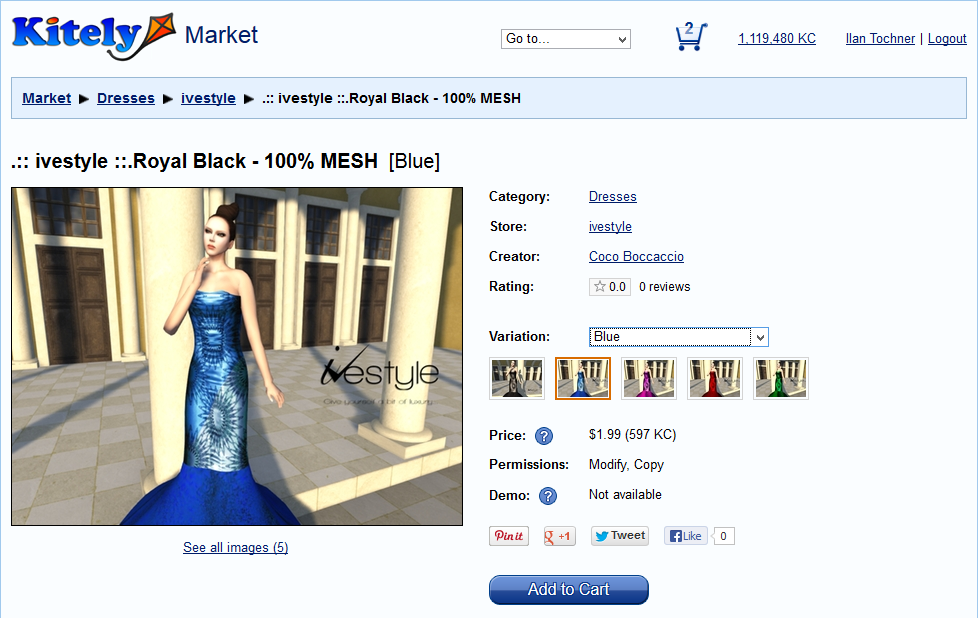
Kitely Market Variations

A product may have several Variations, which are small differences in the product. For example, a merchant that creates a blouse might offer it in five different colors. Other marketplaces present these blouses as five different products, which makes it difficult to compare them, and also takes more work for the merchant to maintain. Kitely Market enables the merchant to create a single Product with five Variations. All the variations are shown together, and the user can easily compare them. The screenshot above shows an example of a dress that is available in five colors. You can view each of the variations by hovering the mouse over the variation’s thumbnail. This is really cool, so here’s another example, and another.

Variations make it easier to search for products, because when searching the marketplace the product will appear just once instead of five times. The variation that appears is the one that matches your search filter best. For example, here’s a search for outdoor chairs. If you click on different Color attributes then you’ll see the same product (Adirondack Chair Set) appear only once each time, with the color that you selected.

All of the product’s variations are counted together for the purpose of reviews, sales ranking, and Likes. This means that combining similar products into a single product with variations can help increase that product’s search ranking, and thus help it sell more. This also lets buyers see all the relevant reviews for the product at once.

Product Demos

Each product variation can have a demo version. Unlike in other marketplaces, this is not a separate product: the demo is an integral part of the product. Potential buyers can easily try the demo version as follows: they add the item to their Shopping Cart, and in the cart they get a link called “Try demo”. When they click this link, the demo version is immediately added to their inventory.
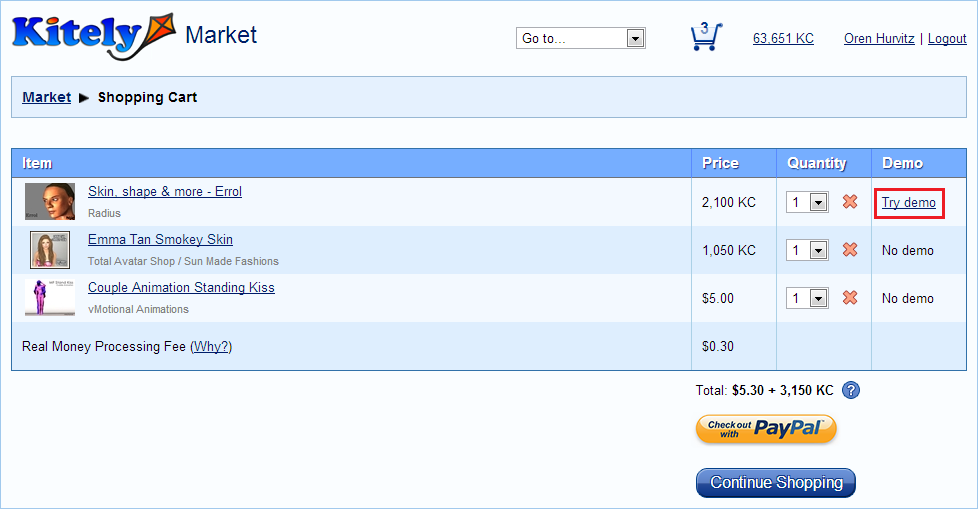
Try Demo

Great User Experience

We believe that shopping isn’t just about ending up with the products you want, but also about enjoying the shopping process itself. We have therefore made it a joy to browse the store. Certainly, making it easy to find the products you want (as we’ve described above) is important. But we also spent a lot of time making it fun to interact with the marketplace. Kitely Market provides the sort of user experience that is usually seen only in mobile apps: as you click around things slide, rotate, fade in/out, grow/shrink, and provide many other types of engaging feedback.  As an HTML5 application, Kitely Market works on Windows, OS X, Linux, Android and iOS. The supported browsers are Firefox, Chrome, Safari, and IE9 or better. (Some effects are disabled when using IE.)

At the risk of sounding immodest, we believe that Kitely Market has the best user experience of any web-based e-commerce marketplace currently out there! Seriously, check it out.

Information for Merchants

Kitely Market has been open for merchants (but not buyers) for several months, in order to allow them to add products to the market before its grand opening (today!). We want to thank these early-birds who added products to the market before they could actually sell anything: they created almost 1000 variations in total, and they’re the reason you can experience the full power of Kitely Market immediately, without having to wait for merchants to start creating their stores. Two of our merchants have even achieved Featured Merchant status, and their stores are now displayed prominently in the market homepage.

Merchants can choose to sell their products for Kitely Credits, US Dollars, or both. When a product is bought using KC we transfer those KC to the merchant immediately (less Kitely’s fee). When a product is bought for USD we hold on to the money for 45 days to get past PayPal’s transaction dispute window. Within a week afterwards, we transfer the money to the merchant’s PayPal account automatically (less Kitely’s fee, and subject to a minimum payout amount). Kitely Market fees are explained here.

When merchants sell their items for US Dollars they receive these USD into their PayPal account automatically (after a certain delay, as explained above). Unlike some other marketplaces, we don’t force all purchases to be converted into our grid’s virtual currency. This eliminates a problem we’ve heard from many merchants, that they fear being stuck with a virtual currency that they don’t need, or they just don’t want the hassle of converting it into real money. Kitely maintains anonymity for both buyers and sellers: they each see only the other party’s virtual identity, but not their real-world identity.

We’ve already explained in the past how to create a store in Kitely Market, so we won’t repeat that information here. For more details see either this blog post, or our Wiki.
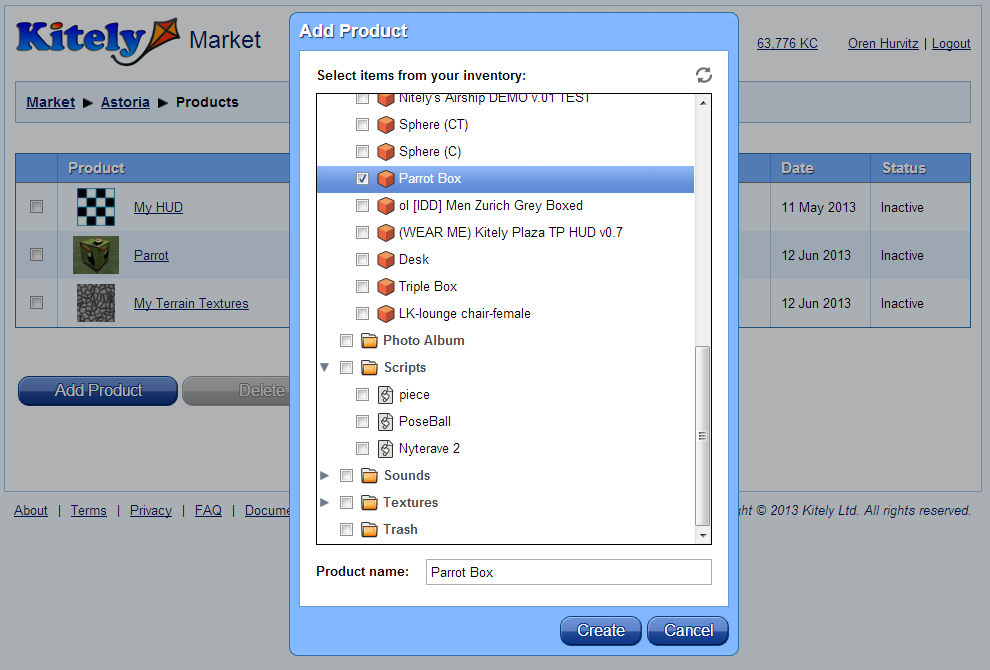
Add Product

Export Permission

Merchants can choose whether their items can be used only in Kitely, or in other OpenSim grids as well. They do so by setting the Export Permission on their products. Products where the Export permission is disabled (this is the default) can’t be taken out of the Kitely grid. Products where the Export permission is enabled may be transferred to other grids. At this time the only way to transfer products to other grids is by rezzing them in a world; exporting the world to an OAR file; and then importing that OAR file in another grid. The next phase of the Kitely Market rollout will enable delivery of bought items to avatars from all hypergrid-connected grids. Once we enable the full power of this feature, merchants selling in Kitely Market will be able to easily provide their goods to tens of thousands of people who actively use Hypergrid-connected grids.

For more information, see this blog post.

Export Permission Checkbox

Other Features

Kitely Market contains other features that are standard for marketplaces, such as Reviews, Comments, Rankings, Purchase History, Sales History, Email Notifications, etc.

Reviews and Comments show users’ pictures, so we recommend that all users set a profile picture. To make this easy, we now allow uploading pictures directly in the website. These pictures are automatically used in the Kitely Forums as well.
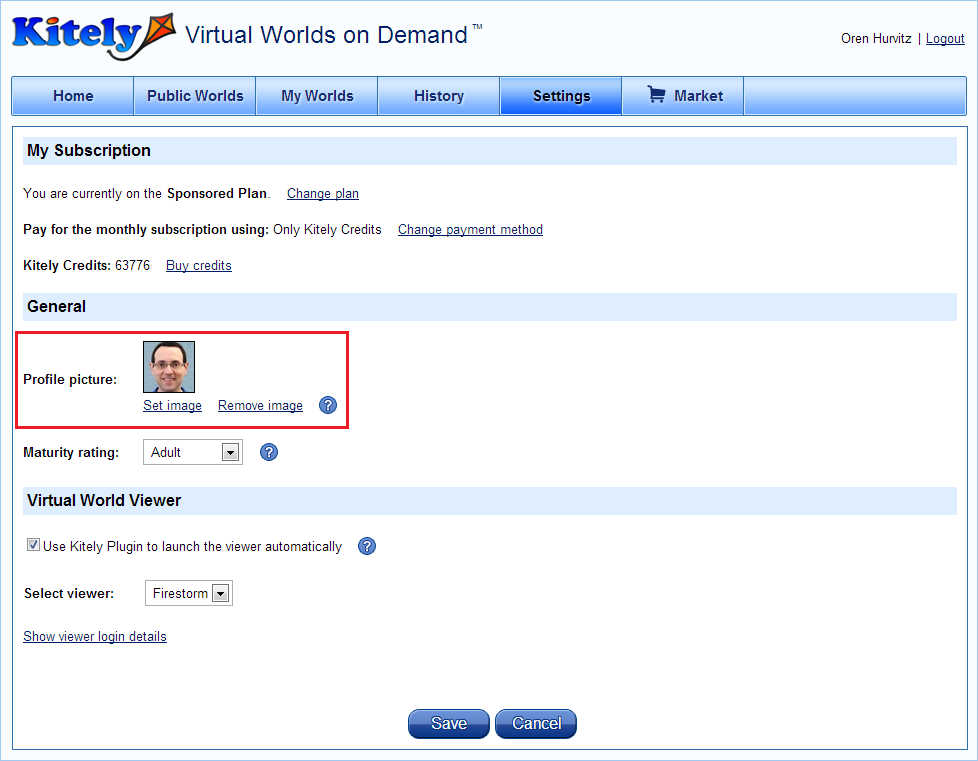
User Profile Picture

We made a small change to the way that we ask users to accept our Terms of Service. This change affects only users who signed-up using Facebook: the first time they login to Kitely, they will be asked to accept our Terms of Service. This doesn’t affect users who signed up using Twitter or Email/Password.

Whenever the user interface shows a user name, this name can be clicked to show more information about the user. We now include links to the user’s Forums Profile and Kitely Market store (if the user created one). This makes Kitely more social because it enables you to more easily connect to other Kitely users.
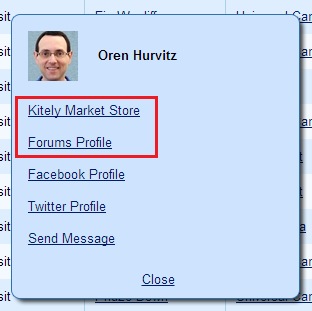
User Profile Popup

Conclusion

Kitely Market is a brand new e-commerce platform, and we need your feedback to improve it. Please use this forum thread if you have questions, suggestions or bug reports.

Kitely Market Update and Other Improvements

We updated Kitely today with several features and bug fixes that were requested by our users. We are also making good progress on the Kitely Market, which is expected to open at the beginning of September.

Today’s release includes a full implementation of the shopping sequence: the shopping cart; buying through PayPal; viewing the shopping history and sales history (for merchants); email notifications; and sending payouts to merchants. However, since the market is not yet ready we have disabled the “Add to Cart” button, so you won’t be able to actually try out these features just yet…

Merchants: Setup Kitely Market With Your PayPal Account

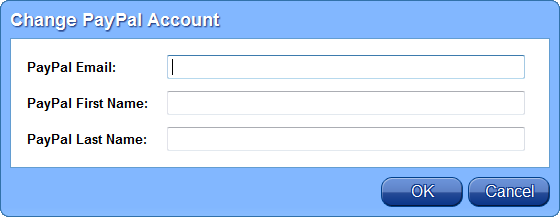
At this time we ask all store owners to enter the details of their PayPal account into their store. We will use this PayPal account to transfer the store’s earnings to you.

For security, we require these PayPal accounts to be Verified. Learn how to Verify your PayPal account.

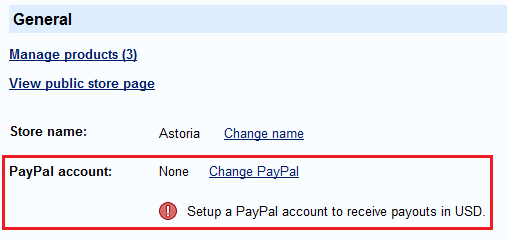
Enter your PayPal account details in the Manage Store page:

Store PayPal Account

Change PayPal Account

As agreed in the Kitely Mentors Group meeting (July 3), Money that you receive from buyers using US Dollars (USD) will be withheld for 45 days before being cleared for payout, in order to get past PayPal’s 45-day transaction-dispute window. It will then be transferred to your PayPal account in the next weekly payout date (once it exceeds the minimum payout amount).

Once the Kitely Market opens, you’ll be able to start selling on the Kitely Market even if you don’t have a Verified PayPal account, since the money that you earn will accumulate in your store’s Balance. However, this money can’t be transferred to you until you enter the details of a Verified PayPal account. If you don’t do so then we’ll keep your earnings in the store’s Balance for 90 days, at which point we’ll convert them to Kitely Credits and add these KC to your Kitely account. Therefore, we recommend that all merchants setup a Verified PayPal account and enter its details in their store.

Other Improvements

We made several improvements to the system in response to our users’ requests:

We’ve enabled the OSSL functions osGetGridName() and osGetGridNick().

We fixed a bug where invitations to join a group weren’t saved as Offline IM’s if the receiving user was offline.

We fixed a bug where when an avatar gives an inventory item to another avatar that is in a different region, the receiving avatar got two copies of the item.

There are two Store pages: “View Store” and “Manage Store”. To make it easier to switch between them, we added a direct link from the View Store page to the Manage Store page. This link appears only for the store’s owner.

It is now possible to include “hop://” URL’s in world descriptions. These are URL’s that, when clicked, automatically start the viewer and enter a specific region in a specific place.

When paying for a subscription that includes Unlimited Free Access worlds, the subscription name in PayPal now mentions those worlds. This is important for users that receive reimbursements from their employer using the PayPal receipt. For example, a subscription that uses the Free Plan with one Unlimited Free Access world was previously called just “Free Plan” in the PayPal receipt, but now it’s called “Free Plan + 1 Unlimited Free Access World”.

When viewing a world page, if the world has a premium price (X KC / minute) then that price is shown below the “Enter World” button. However, the price didn’t appear if the user had skipped installing the Kitely Plugin. This bug has been fixed.

During signup, we didn’t accept email addresses whose domain names start with a digit, e.g. “37signals.com”. Now we accept such emails.

Kitely Plugin now supports newer versions of Kokua. The difference is that these versions install themselves using the filename “KokuaTest.exe”, which wasn’t recognized previously.

And finally, we have removed support for Mac OS X 10.5 in Kitely Plugin: the minimum supported version of Max OS X is now 10.6. This was done because that version of Mac OS X is very old, and it frees up resources to support newer versions of Mac OS X. However, users of Mac OS X 10.5 can still start the viewer without Kitely Plugin.

Kitely Market Merchants Can Now Browse Their Own Stores

We received a lot of feedback from our Kitely Market merchants that they want to see what their products will look like to buyers. So today we updated our system to allow merchants to use the Kitely Market search page, and to view the Product page and Store page that buyers will see.

Since Kitely Market is still in pre-release mode, merchants can only browse their own stores, and non-merchants can’t browse the market at all. Furthermore, the Store and Product pages aren’t quite finished: for example, the Product page doesn’t show Customer Reviews yet, and doesn’t allow actually purchasing the product. Nevertheless, they’re close to what the final pages will look like.

Search Page

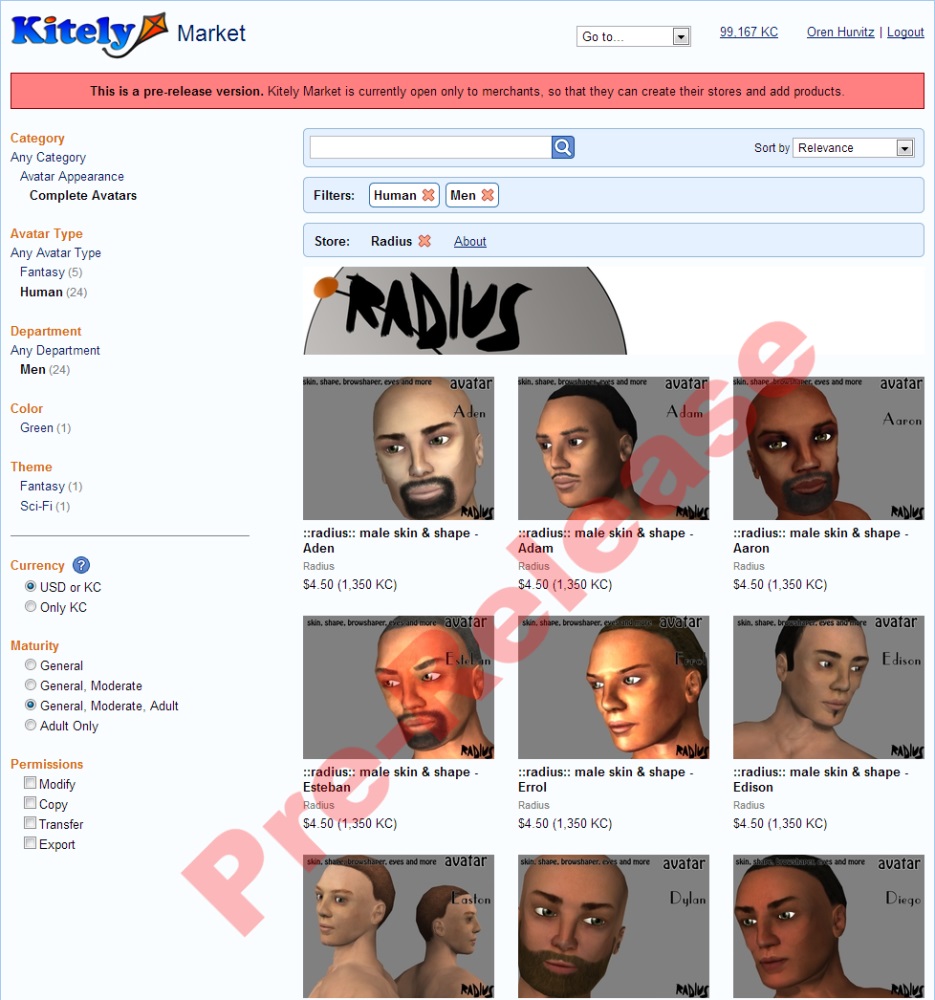
The Search page is now live for merchants. For example, this is what the Search page looks like when viewing the store “Radius”:

Search Market

This page is fairly intuitive, but we’d like to point out a few highlights. The left side of the page contains various ways to filter the search results: by category, attributes, and other filters such as Currency, Maturity and Permissions. The list of available attributes changes depending on the selected category. For example, the “Hair Color” attribute only appears if the selected category is “Hair”.

Whenever a filter is active, the Filters panel appears. This panel lets you quickly see which filters are active, and remove them. In the screenshot above, we clicked on the attributes “Human” and “Men”, so they appear as filters. (Note that “Category” isn’t considered a filter, so it won’t appear in the filters panel.)

A special kind of filter is the Store filter. Since Kitely Market is in pre-release mode, merchants can only search within their own store. This means that for now the Store filter is always present and can’t be removed.

Product Page

There are two product pages: Edit Product, which only the merchant can access, and View Product, which anyone can access (as long as the product is Active). When we use the term “Product Page” we mean the View Product page. You can access the product page either by clicking on a product in the Search page, or using the “View in market” link in the Edit Product page.

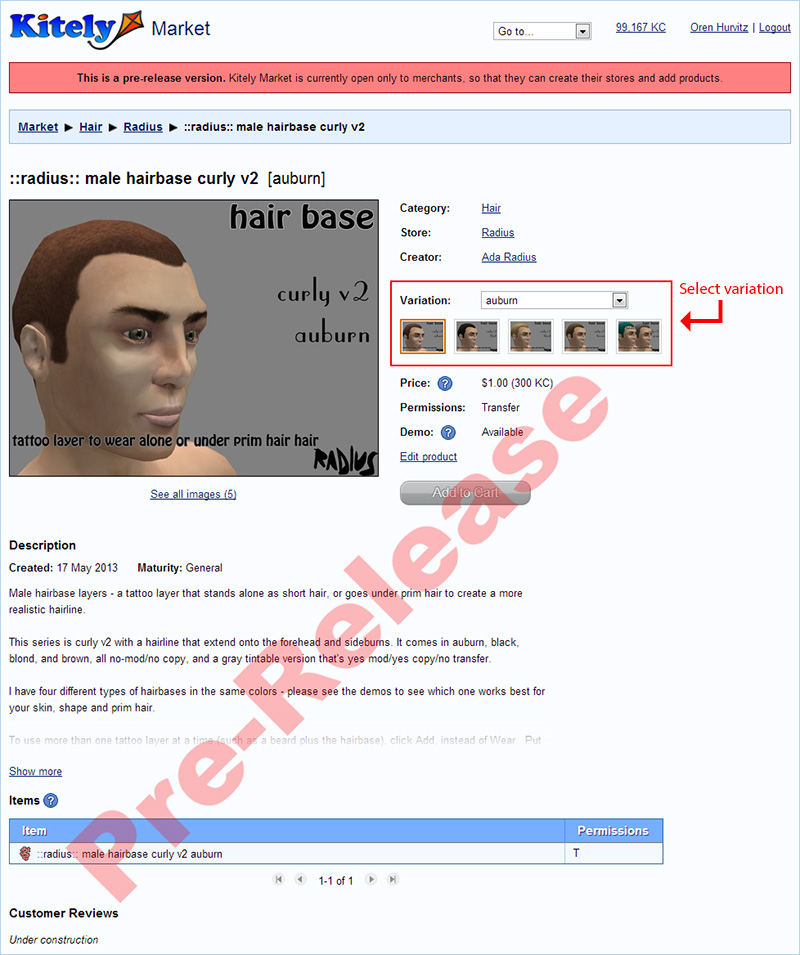
This is what a product page looks like:

Product Page

You can view the live version of this product here. However, you won’t be able to buy it yet…

In this screenshot, notice the area that is highlighted with a red rectangle. That is where you can see the available variations and switch between them. In this product, the user can choose between several hair colors. Notice how easy it is to see all the available variations and choose among them: it’s much more intuitive than having to deal with multiple products!

The product page always shows the latest Active version of the product. If you’re currently editing the product then your changes won’t be visible in the product page until you save them.

Store Page

There are two store pages: Manage Store, which only the merchant can access, and View Store, which any user can access.

To get to the Manage Store page, use the new “Go to…” listbox at the top of the screen (you can see it in the previous screenshots). The Manage Store page hasn’t changed much in this release: we just added one link to it, “View public store page”. This link leads to the publicly-available Store Page, which any user can see. The public store page can also be accessed by clicking on the store’s banner image in the Search page.

Conclusion

With this release we’ve completed another big part of the Kitely Market, and it brings us one step closer to enabling content creators to easily sell to the growing OpenSim metaverse (currently comprising more than 300,000 registered users and 20,000 active monthly users).

If you’re interested in selling virtual goods in the metaverse then make sure to take advantage of our special offer of free listings and a chance of becoming a Featured Merchant. This time-limited promotion will end soon, so act now and start building your Kitely Market store today!

Export Permission Implemented

We updated Kitely today, and now Kitely Market merchants can take advantage of the Export Permission to decide whether users who buy their products can take them to other OpenSim grids. We also fixed several problems that were reported by our users.

Export Permission

The Export Permission specifies whether objects and assets are allowed to leave the Kitely grid. Merchants can enable or disable the Export Permission for each of their products in the Kitely Market. This is a very powerful feature, as it gives content creators the flexibility to choose whether they want their products to be highly secure (by restricting them to the Kitely grid), or to sell them to anyone in the OpenSim metaverse.

The Export permission works differently from the standard OpenSim permissions (Move/Copy/Transfer): instead of setting it in the viewer, this permission is set in the Kitely Market. The Export permission isn’t shown in the viewer. Content creators that add a product to the Kitely Market can choose whether to enable Export on their product by clicking on a checkbox:

Export Permission Checkbox

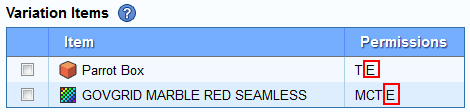
When the Export permission is enabled, we show “E” next to all of the items in the product. This is simply a reminder that the items that the buyer receives will have the Export permission:

Export Permission in Items

If the merchant adds any No-Export items to the product then the product automatically becomes No-Export as well.

When users buy a product, the objects and assets that they receive are tagged with the product that they came from; this enables us to track them and enforce their export restrictions. When users attempt an export operation we prevent No-Export objects and assets from leaving Kitely. This check is very strict: if an object contains even one No-Export asset then the entire object becomes No-Export. Currently the only export operation is “Export OAR”, but in the future we’ll also allow transferring items to other grids; that’s also a type of export.

Export OAR Respects the Export Permission

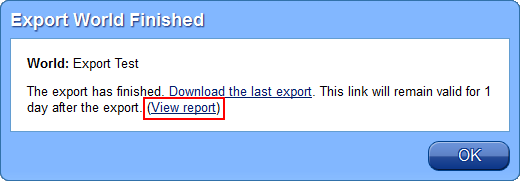
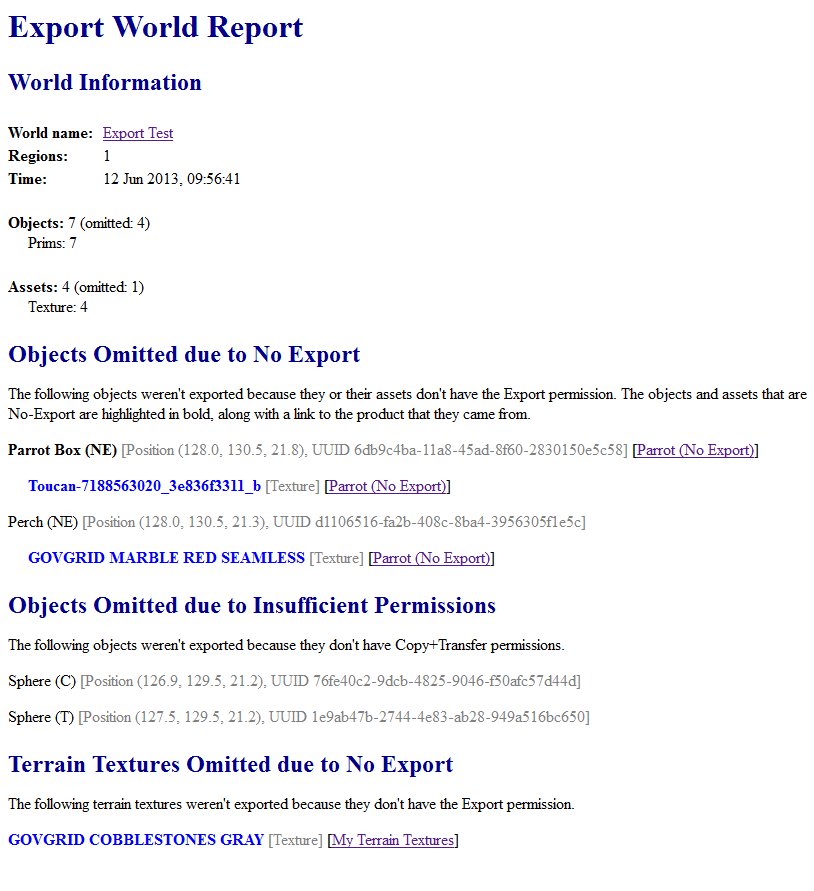
Kitely has a long history of allowing our users a lot of flexibility, while maintaining strict content protections. We’re one of the few commercial grids that allow exporting OpenSim regions to OAR files; this has been available since 2011. The Export Permission didn’t exist until now, so previously we enforced content protection by making OAR exports respect copy and transfer permissions. Today we’ve made two big improvements to the Export OAR feature. First, as explained above, we now prevent No-Export items from being included in OAR files. Second, after Export OAR completes, we now create an Export World Report that summarizes the contents of the world and which objects (if any) weren’t saved to the OAR file. You can view this report by clicking on a link in the same dialog where you download the OAR file:

View World Report

Only objects that originated from the Kitely Market have an Export or No-Export Permission. Objects that weren’t bought in the Kitely Market can be exported if they have both Copy and Transfer permissions.

Here’s an example of a World Report:

Sample World Report

Other Improvements

We changed how we resize product images in the Kitely Market. Previously, if the images weren’t in the correct aspect ratio (4:3) then we cropped them on the sides. This was inconvenient for people who have images in other aspect ratios because they had to either accept this cropping, or resize the images before uploading them. We’ve therefore stopped cropping images: instead, we allow them to occupy only part of the picture area, with whitespace making up the missing parts. That said, it’s still recommended to upload images with 800×600 pixels because they’re the most eye-catching for potential buyers.

We increased the maximum length of a product description in the Kitely Market from 2000 characters to 5000 characters. We increased the maximum length of a store’s About text to 5000 characters as well.

Some users with large inventories had difficulty logging-in to virtual worlds. This happened because on login OpenSim searches the user’s entire inventory for Gestures, so the time it took to login was proportional to the size of the user’s inventory. We added an optimization that eliminates this slowdown.

The LSL function llRequestUrl didn’t work, because it requires a server name but we used to return an internal hostname that was inaccessible outside of Kitely. We now return a public hostname that works correctly.

The “Show Objects” feature didn’t work in megaregions. This is a feature in the “About Land” dialog that lists all the objects in a parcel according to their owner. It used to work only in non-megaregion mode, but now it works in our Advanced Megaregions as well.

A few people encountered a problem logging-in using Twitter because Twitter have changed their API. We updated to the new API (version 1.1), and now Twitter logins work again.

Viewers support displaying up to 8 textures per mesh. There used to be an OpenSim problem with storing more than 6 textures per mesh; that problem has now been fixed.

Kitely Market is Now Open to Merchants

We achieved a major milestone today with the completion of the first phase of the Kitely Market! Merchants can now create their stores, and we are offering a limited time promotion which can save you money and increase your sales with free advertising.

We also made two changes to our support infrastructure. First, we moved the forums to a new URL: https://www.kitely.com/forums/. Second, we created a documentation site at https://kitely.atlassian.net. Currently this site is focused on information about the Kitely Market, but in the future we’ll add other types of information as well.

Kitely Market

Kitely Market is now open to merchants! Content creators are invited to create a store and add products to it. The market is not open to buyers yet, but we are now working on this functionality, and we expect to have it ready this summer.

The rest of this blog post explains how to use Kitely Market as a merchant.

Create Your Store

Enter Kitely Market by clicking on the Market button in the toolbar.

toolbar-market

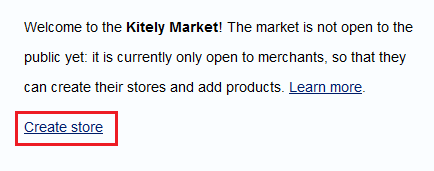
Once the market is open to buyers this page will allow users to search the market. However, right now this page only allows you to create a store.

Create Store

Click Create store, enter your store’s name and description, and click Create. This will bring you to the Store Home page.

Store Home

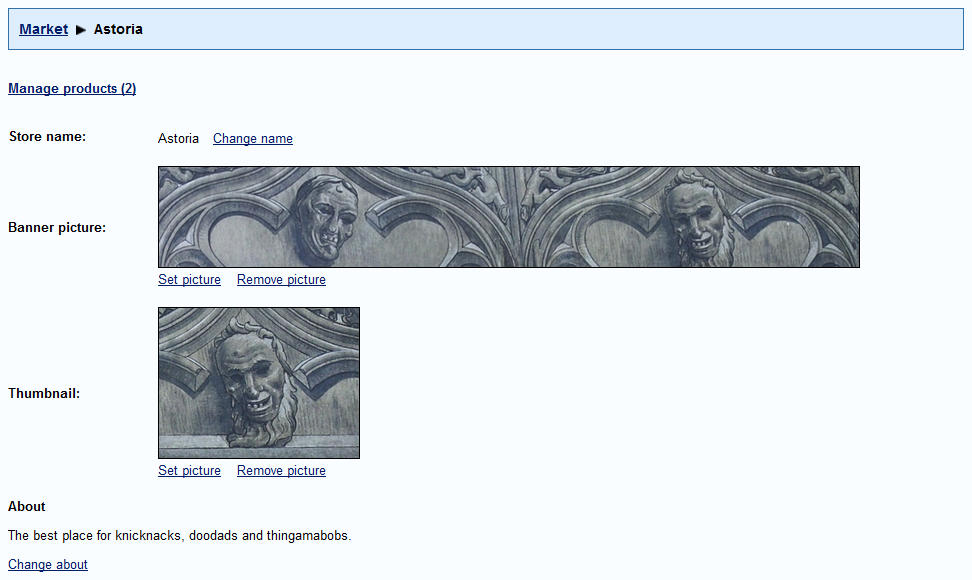
The Store Home page lets you manage your store.

store-home

Here you can change your store’s Name, About, and pictures. The banner picture will appear when users view your store’s products. The thumbnail picture may be used when searching for stores.

Click Manage products to add or edit products.

Manage Products

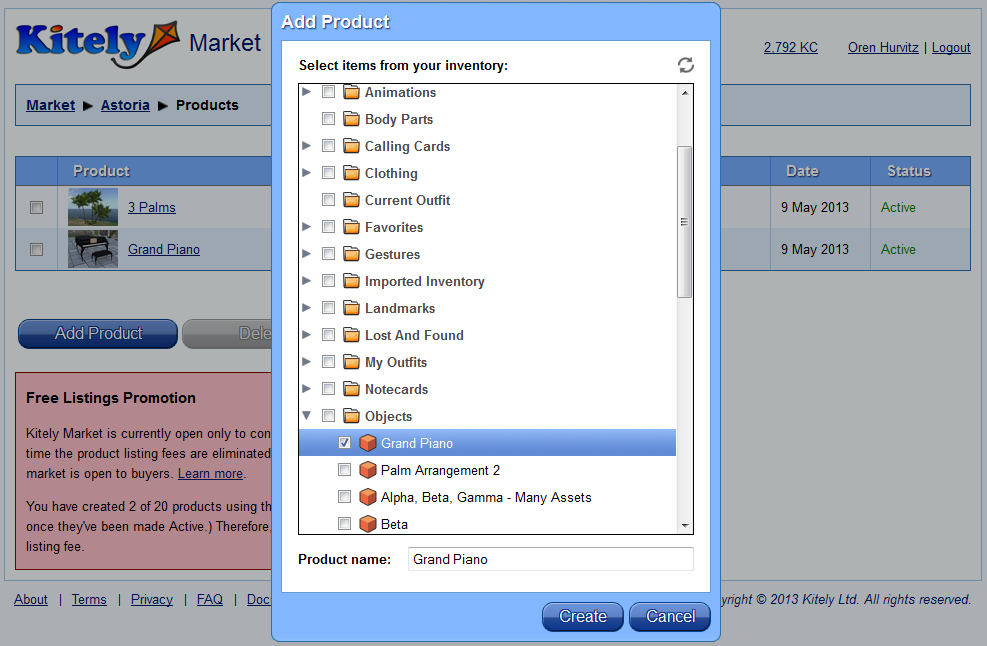
This page shows all of the products that you have in your store. Click Add Product to create a new product. This pops up a window with your avatar’s inventory. Click on the checkbox next to the items that you want to include in the product, and then click Create.

Add Product

You must have Copy and Transfer permissions on all the items that you add to the product. After you’ve created a product (or clicked on an existing product) you will enter the Edit Product page.

(By the way, the products in this example are from Linda Kellie.)

Edit Product

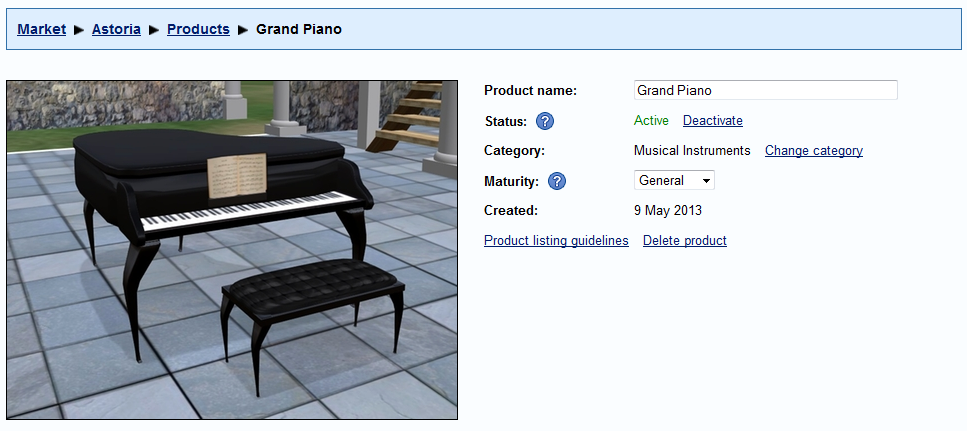
In this page you can view a product’s details and modify the product. We have a description of all of these fields in the Kitely Market documentation page. In addition, we’ve created guidelines for creating good product listings. We’ll now describe briefly the parts of the Edit Product page.

The first part of the Edit Product page lets you set the general properties of the product, such as its name and category.

Product Properties

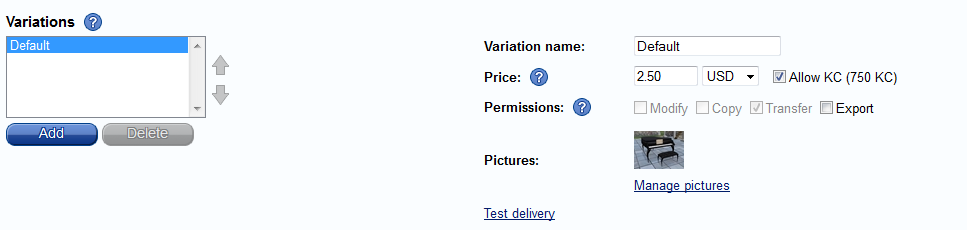
The next part of the page lets you add variations, and set properties that apply only to the current variation such as price and permissions. In this example the product has only one variation.

Variation Properties

Next, you can set the product’s attributes. Attributes are used by users to refine their searches. You can choose which attributes apply to the entire product (on the left side), and which attributes have different values in each variation (on the right side).

Product Attributes

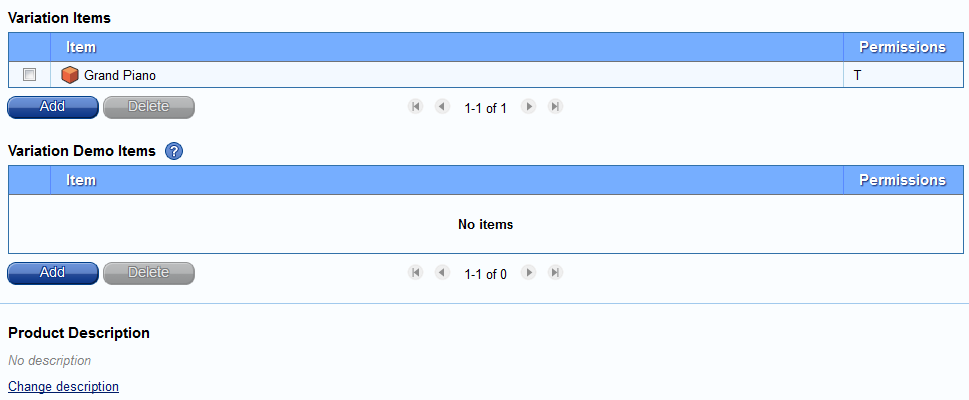
Finally, the page shows all of the items in the currently viewed product variation, and you can set the product’s description.

Edit Product: Items

Modifying a Product

If you want to modify a product then visit the Edit Product page and start making changes. These changes don’t affect the product in the market until you click Accept changes. Or, if you change your mind, click Cancel changes to revert the product to the last accepted state. Notice that there’s no “Save” button in this page: every change you make is saved immediately and automatically, but it won’t be seen in the market until you click Accept changes.

Edit Product

This concludes our overview of how to use Kitely Market.

Limited Time Promotion

Normally there’s a fee of 100 KC to add a product to the Kitely Market, and 25 KC to add a variation. However, we are offering a limited-time promotion to encourage merchants to add products now, so that they’ll be ready once the Kitely Market opens for buyers (Update October 5, 2013: Kitely Market listing fees have been eliminated).

The promotion includes the following benefits:

  • Add 20 products to your store for FREE (no listing fees).
  • If your first 20 product listings adhere to our guidelines then you may request to be allowed to add an unlimited number of products to your store for free. The link that allows sending this request appears once you have added 20 products to your store.
  • If you create at least 100 product listings that adhere to our guidelines then you’ll be considered for Featured Merchant status. Featured Merchants will be featured for free on the Kitely Market homepage, and they’ll get free in-world shops in the official Kitely Plaza.

The free listings promotion will expire once the market is open to buyers. However, Featured Merchant benefits will last for an entire year after the market opens for business.

See the Kitely Market Fees page for a complete list of fees, and additional details about this promotion.

Please note that there are no fees for uploading content in Kitely: only for listing products. Furthermore, if you don’t have a world of your own where you can create your products then you can use the free Kitely Merchants Sandbox.

Sell to Multiple Grids

You can optionally enable the Export permission on your products. When this permission is enabled, users are allowed to take the item out of the Kitely grid. Initially this means that when users export their world to an OpenSim Archive (OAR) file, the item will be included in the OAR. Later we will allow Exportable items to be transferred to other grids as well.

Bugs and Known Issues

There are a couple of known issues in Kitely Market that we’ll fix in the next release . We didn’t want to delay rolling out the market for them:

(Update: these issues were fixed on May 22, 2013)

  • In the Add Product dialog, when you click on a folder only the folder is shown as selected, but not the items inside the folder. However, these items are included, as you can see once you click on Create.
  • If you try to Accept changes in a product that has some missing fields then you’ll get an error message. This message doesn’t specify which of the product’s variations has the missing fields; it might not be the variation that you are currently viewing.

If you encounter any other problems then please let us know in the Kitely Market forum.

Faster Logins using Transfer Stations

Today we’re pleased to introduce Transfer Stations, and several other improvements that make entering Kitely faster and easier. We also implemented a number of user-requested features and fixed some bugs.

Transfer Stations

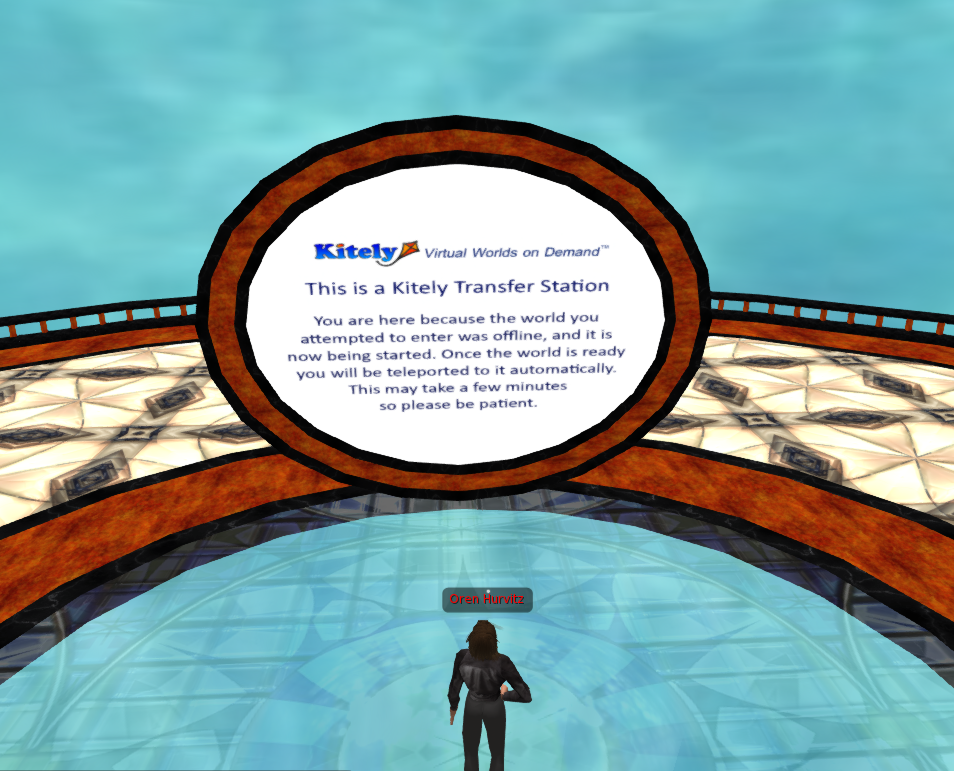
A transfer station is a miniature world that is used for waiting while an offline world is being loaded. Here’s what a transfer station looks like:

Transfer Station
Transfer Station

Kitely is a cloud-based virtual world provider, so when you want to enter a world that is currently offline we need to start the world first. This is fairly quick, but not instantaneous. Transfer stations allow you to login to the Kitely grid immediately, even before the world is ready. Once the world you wanted to enter is ready you’ll be teleported to it automatically.

Transfer stations are used only for the initial login to the Kitely grid, i.e. when your viewer isn’t already logged into another Kitely world. If you’re already logged into Kitely then you’ll wait in the world you are currently in while the world you are heading to is being started.

If several people try to enter the same offline world then they’ll be placed in the same transfer station. This allows you to talk and chat with other people heading to the same world even before that world is up and running.

Transfer stations have several benefits:

  • They reduce the time it takes to enter an offline world, because the time for starting your viewer is spent in parallel with the time it takes for the world to be started.
  • They make it possible to enter a world by logging in directly from the viewer (instead of from our website). Until now every time you wanted to enter an offline Kitely world you had to go to that world’s World Page and click the “Enter World” button. This is no longer necessary.
  • Once Kitely enables HyperGrid access, transfer stations will enable you to HyperGrid teleport into Kitely worlds even if those worlds are currently offline.
  • You can start chatting, dressing up, and interacting with other people heading to the same world as you even before that world is ready.

You may remember that when we last talked about Transfer Stations we wanted to allow people to create their own transfer station designs. We didn’t implement this feature yet due to time constraints, because our current focus is on creating the Kitely Market. We intend to eventually enable this type of customization but this won’t happen soon.

Viewer Login Improvements

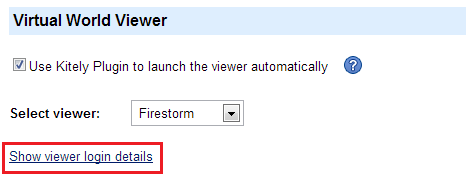
We’ve made it easier to find the information you need in order to login to the Kitely grid directly from the viewer. In the Settings page, we added a link that shows you your full login details:

Show viewer login details

This information is only needed for logging-in manually. It’s not needed if you use Kitely Plugin, since Kitely Plugin launches your viewer automatically without requiring you to enter any information.

Since it’s now possible to login directly from the viewer, we respect the login choices “Last Position” and “Home” (if the user had set a Home location).

Additional Changes

We fixed a bug in OpenSim that caused avatars to face East after a teleport. Now avatars usually face in the same direction as they had been before the teleport. (We’ve found that this still fails in Imprudence, which has a bug that often causes avatars to face North after a teleport. That bug is unrelated to our OpenSim changes, and it doesn’t happen on Firestorm.)

IM messages sent to a Group are no longer saved as offline messages. This was done because users have a limited number of offline messages that they can save (25), and an active group can easily exceed that limit. We do save Group Notices as offline messages, however, and of course any IMs that are sent directly to the avatar.

We changed the way we detect idle avatars in order to prevent you form being disconnected while you’re uploading objects using Imprudence’s content backup tools.

When you share World Pages on Facebook, the resulting post includes part of the world’s description. If the description included rich text (e.g., bold) then the Facebook post used to show HTML tags such as “<b>”. To fix this, we now remove such tags from the description we send to Facebook. If your world had this problem then change its description slightly; this will make us update Facebook with the new tag-free description.