Sales Campaigns in Kitely Market

We’re excited to announce a major new feature in Kitely Market today: sales campaigns! Sales campaigns let merchants offer discounts on their products. Discounts have been shown to be extremely effective in increasing sales in other digital platforms, and we expect them to do the same in Kitely Market.

Are Discounts Really Effective?

Absolutely! The most important source of information about the effect of discounts on sales of digital content is Steam, the online games store. Here’s what Steam’s executives and game developers say:

“Valve co-founder Gabe Newell announced during a DICE keynote today that last weekend’s half-price sale of Left 4 Dead resulted in a 3000% increase in sales of the game […]”

(Source)

“We find that we get several thousand percent increases in units and revenue on the days of the Steam sales, and unit sales are usually about double the normal for a few weeks after the sales are over,” he says [Runic Games CEO Max Schaefer].

“According to indie developer and Super Meat Boy co-creator Edmund McMillen, these promotions can increase sales to an almost staggering extent. His 2D dungeon crawler The Binding of Isaac, for example, saw sales multiply by five when it was marked down by 50 percent, and once it hit the front page as a temporary “Flash Deal” (for 75 percent off), sales multiplied by sixty.”

(Source)

Another source of information is Amazon:

“We’ve quantified the price elasticity of e-books from repeated measurements across many titles. For every copy an e-book would sell at $14.99, it would sell 1.74 copies if priced at $9.99. So, for example, if customers would buy 100,000 copies of a particular e-book at $14.99, then customers would buy 174,000 copies of that same e-book at $9.99. Total revenue at $14.99 would be $1,499,000. Total revenue at $9.99 is $1,738,000.
The important thing to note here is that at the lower price, total revenue increases 16%.”

(Source)

Based on these reports we expect products that are put on sale to increase their revenue, possibly by a very large amount. We don’t know exactly what the result of various discounts will be, because the content that is sold in Kitely Market isn’t exactly the same as games (Steam) or e-books (Amazon), but we’re very excited to find out. Once we have some meaningful insights we’ll share them on this blog, so that merchants have a better idea of what types of sales work best.

How Sales Campaigns Work

To put products on sale you need to do two things:

  1. Create a Sales Campaign in your store. The Sales Campaign determines the dates in which the sale is active.
  2. Add products to the Sales Campaign. Each product may have a different discount, from 10% to 90%.

If you’re familiar with Steam sales then you might be a little confused right now. That’s because most Steam sales are created by Steam itself, and not the merchants. Steam chooses when to run the sale, and which games to include in the sale. It then contacts only the merchants that it has chosen to include in the sale. In contrast, the sales system in Kitely Market gives control to the merchants: each merchant chooses when to create her own sales, and which products to include in the sale. (By the way, Steam now also has these types of merchant-controlled sales, but they’re not as well known as the Steam-controlled sales.)

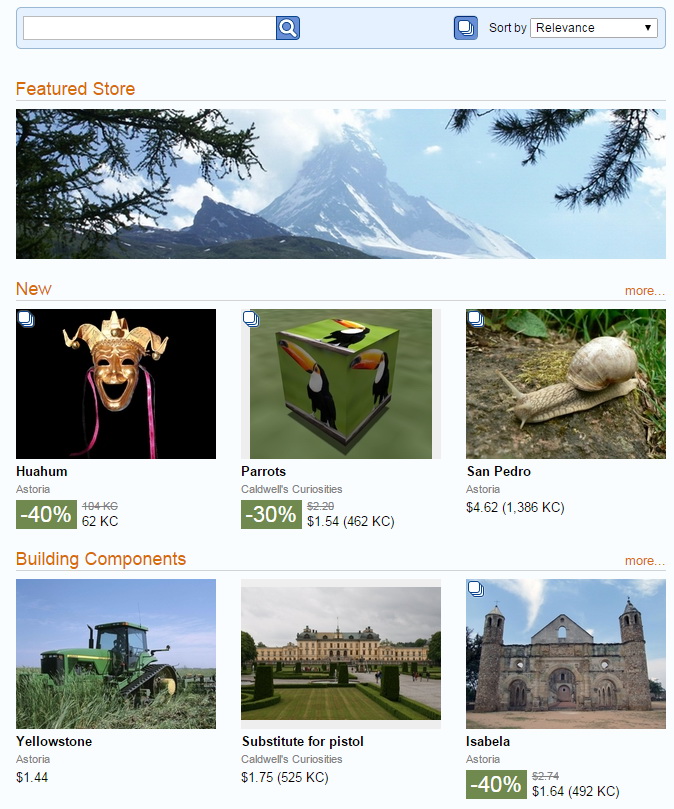
Sales Campaigns can last between 1 and 14 days. They start and end at midnight GMT. While a Sales Campaign is active, the products that are included in that Sales Campaign are shown with a big green discount icon:
Products with Discounts

Create a Sales Campaign

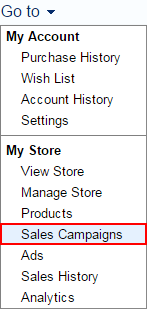
The navigation menu contains a new item for visiting the Sales Campaigns page in your store.
Navigation Menu - Sales Campaigns

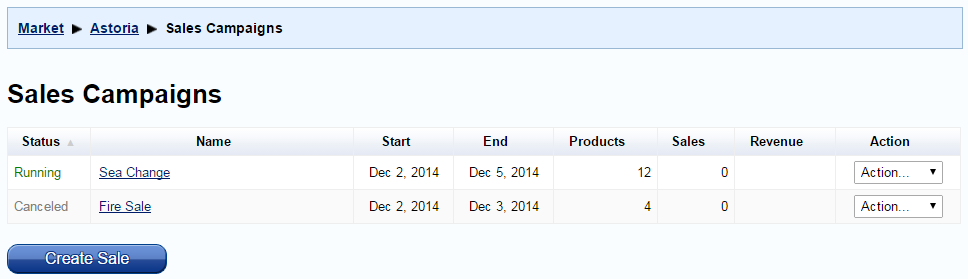
The Sales Campaigns page shows all of your Sales Campaigns.
Sales Campaigns Page

This table also shows how much revenue you made from the sale, i.e. from products that were purchased while they were in this sale.

Add Products to a Sales Campaign

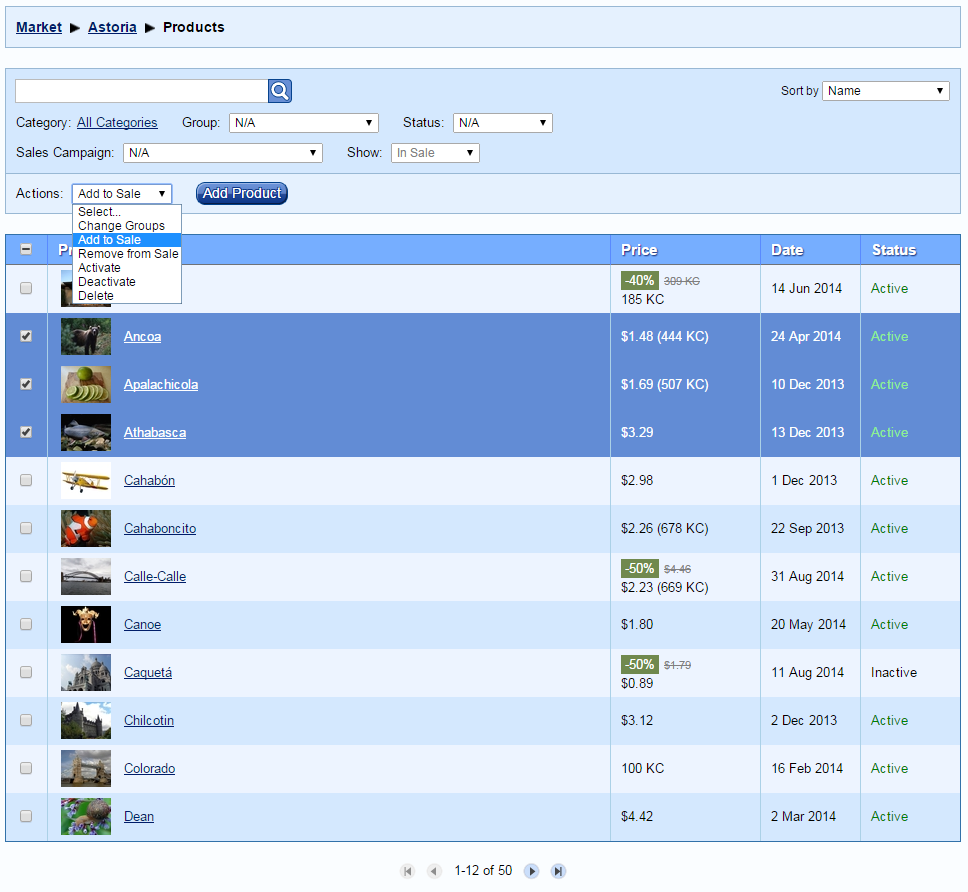
After you’ve created a Sales Campaign you need to add products to it. The Manage Products page lets you select products and add them to the Sales Campaign.
Add Products to Sale

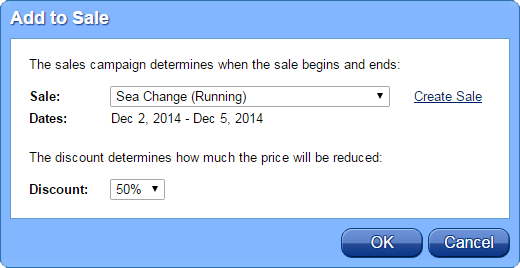
In the “Add to Sale” dialog, select the Sales Campaign and the discount amount. Each product can have a different discount.
Add Products to Sale

You can change the discount amount later by selecting “Add to Sale” again, and you can remove products from the Sales Campaign.

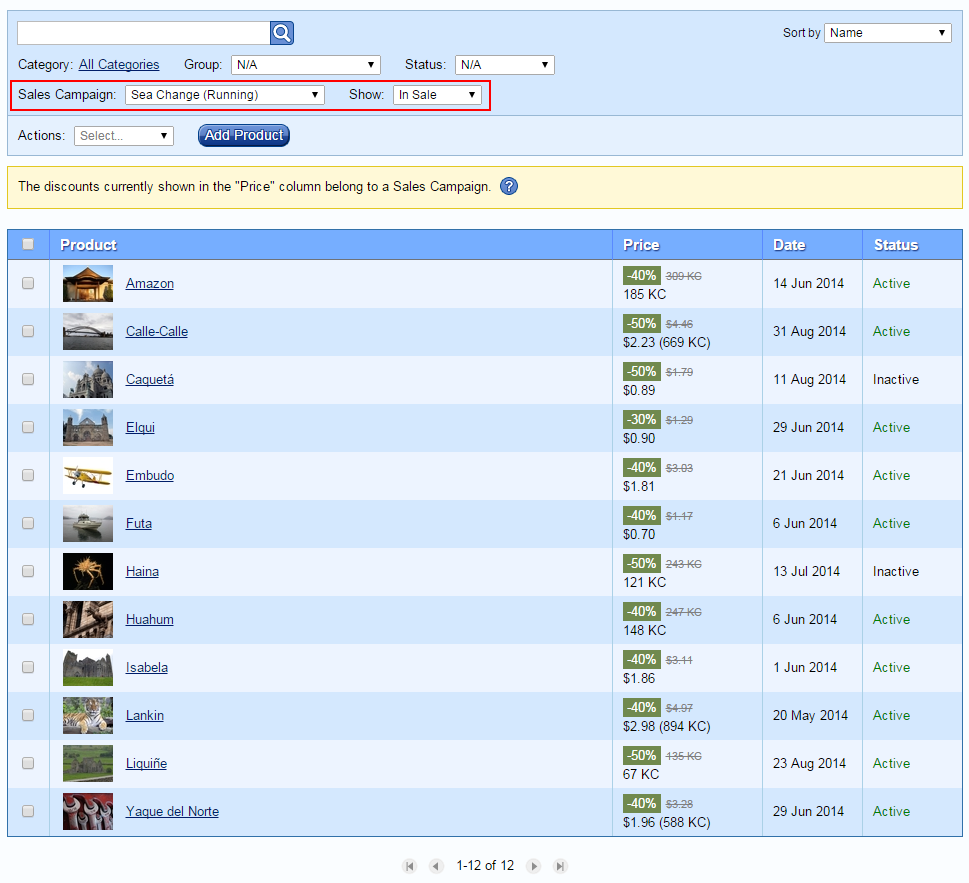
The Manage Products page has a new filter that lets you view the products that are included in a Sales Campaign. Here’s a tricky bit: when you use that filter, the “Price” column changes to show the discount that will be in effect during that sale. This is useful because it lets you see all the products and discounts in the sale even before the sale is active.
Show Products in a Sale

Discounts can make product prices drop below the usual limits (which are 10 KC or $1.00). Our sales commission will also be lower, but always at least 1 KC or $0.01.

Promoting Sales Campaigns

So far, the Sales Campaign that you had created is sort of “hidden”, in the sense that users can see the products on sale but they don’t know the name of the sale, and they don’t have a way to see all of the products in the sale. Sometimes this is what you want: perhaps you just want to put a few products on sale, and that’s fine.

However, a sale is more effective if people know about it. This means that you will want to promote the sale. There are several ways to do that.

Promotion Idea #1: Product Ad

You can create ads in Kitely Market for the individual products on sale. This ensures that people will see that the product is on sale. This is effective if you’re only putting a few products on sale.

Promotion Idea #2: Related Products

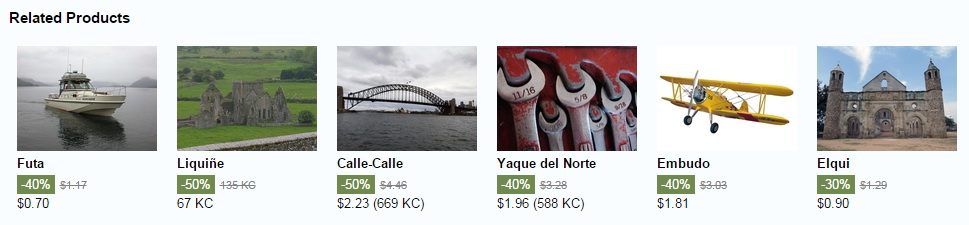
You might want to put all of the products that are on sale in the same Group. If you do this then in the Related Products section of each of the product pages, the other products that are on sale will also appear. This works because when we choose which products to show in the Related Products section we choose products on sale first, and only then do we show products that aren’t on sale. This means that you don’t have to remove your products from their existing Groups; just add them to one new Group (e.g., “On Sale”).
Related Products on Sale

Promotion Idea #3: The Internet

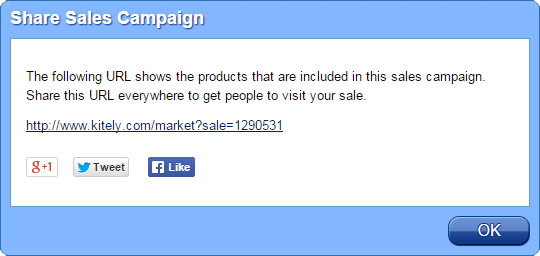
This one is kind of obvious, but you should let people know about your sale! Tweet, Facebook, IM or blog about it. In order to help you do this, we have a feature that lets you share a Sales Campaign. In the Sales Campaigns page, select “Share” in the “Action” menu. You’ll see this dialog:
Share Sales Campaign


You can press one of the Share buttons to share to several popular social media websites. Or, you can copy and paste the URL to other places: blogs, forums, etc.

The URL that you see in this dialog leads to the Sale Page. That’s a page that shows the name of the Sales Campaign, and all of the products that are on sale. This is the only place where users can see the name of your Sales Campaign. So if you share your Sales Campaign URL, make sure to pick a good name for the sale: e.g. “Holiday Sale”, and not “My Sale 3”. You can reuse these names, so you can e.g. have a sale called “New Moon Howl” every month. If you choose not to share your Sale Page URL then it’s okay to pick any name you want for the sale, since users won’t see the name.
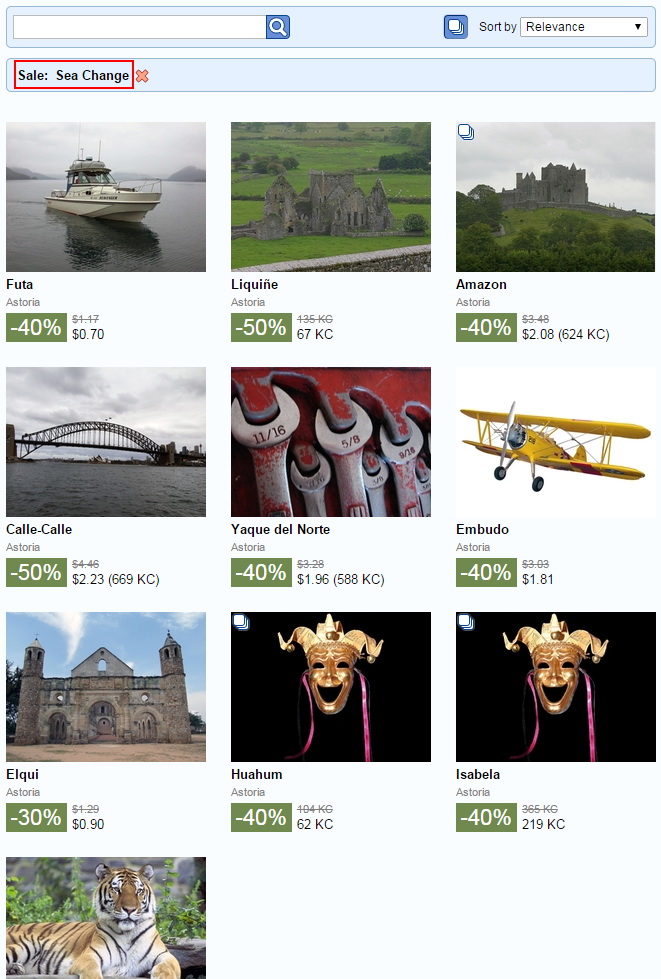
Sale Page

Promotion Idea #4: Sales Campaign Ad

You can create an ad that leads directly to the Sale Page. To create such an ad, select “Create Ad” in the “Action” menu. You’ll get the “Create Store Ad” dialog, because a Sales Campaign Ad is a type of Store Ad. Make sure that the dates when the ad is active are the same as the dates when the Sales Campaign is active.

Sometimes you might not be able to create an ad on the same dates as the Sales Campaign, because there’s a limit on how many ads can be active on each day. If that happens then you have two options. First, you can move the Sales Campaign to dates that still have advertising slots available for creating an ad. This requires canceling the old Sales Campaign and creating a new one using the new dates. The second option is to create the ad on slightly different dates than the Sales Campaign: it might start a little later, or end a little sooner, etc. This is safe because we won’t show the ad unless the Sales Campaign is active, but it wastes a little money. This option might be useful if it’s very important for you to have the Sales Campaign active on specific dates: e.g., on Christmas.

As a bonus, when you create a Sales Campaign Ad the image that is used in the ad will also appear in the Sale Page, which is nice for branding the sale. (Otherwise only the name of the Sales Campaign will appear in the page.) Note that this image will appear in the Sale Page for the entire duration of the sale, regardless of the dates during which the ad from which the image was taken is active.

If you aren’t a graphics designer then you might want to hire someone to create the ad for you. If you are a graphics designer who can do this type of work then please add your name and contact details in the comments.

This is what the Sale Page looks like when it’s showing an image:
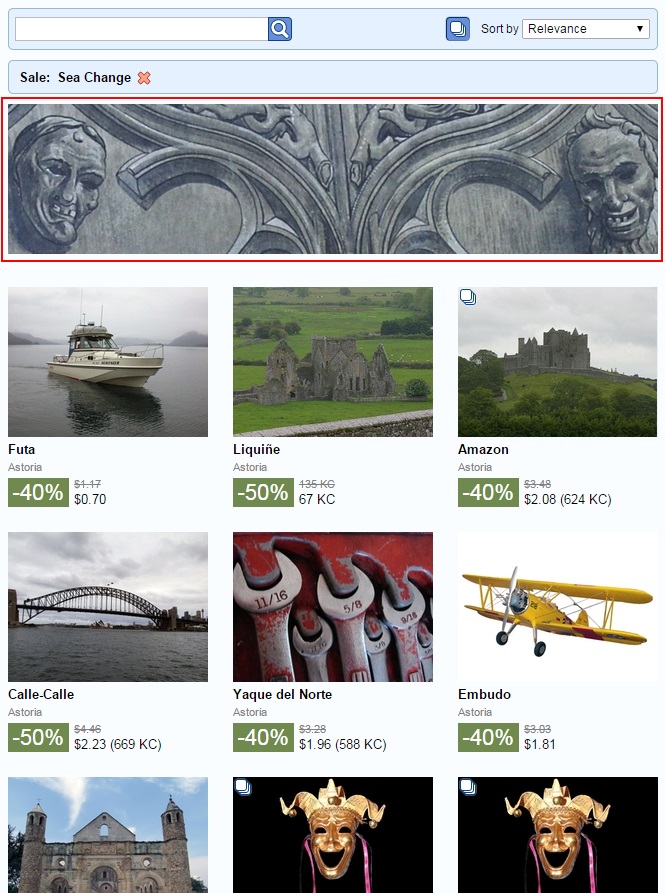
Sale Page with Image

Restrictions

Discounts are effective when buyers can trust that they’re a true bargain, and not a trick. To ensure that this is the case, we’ve put a number of restrictions in place.

First, each product can only go on sale once every 60 days. This ensures that products aren’t perpetually on sale, because that would mean that the discount isn’t a real reduction in price.

Second, Sales Campaigns can last a maximum of 14 days. Again, this ensures that products aren’t perpetually on sale.

Note that it’s okay to create many sales campaigns, even covering every day of the year if you want, as long as you put different products on sale each time.

Third, if a product raises its price then it can’t go on sale for 60 days afterwards. This ensures that unscrupulous merchants don’t raise prices and then immediately put products on sale.

Fourth, merchants may not create “rogue sales”, i.e. sales that don’t use this system. This ensures that products that are shown as “On Sale” have met all of the restrictions described above, which is important in order to keep buyers’ trust.

Wish List Sale Notifications

The Wish List has become much more interesting with this release, because when products go on sale we send an email to users that have these products in their Wish List.

We have a number of restrictions in place to prevent these emails from becoming annoying. First, we send at most one such email per day to each user. Second, these emails will never include more than 10 products; if more than 10 products go on sale at the same time then some products won’t be mentioned in the email. However, users can always check out their Wish List page to see which of the products are on sale:
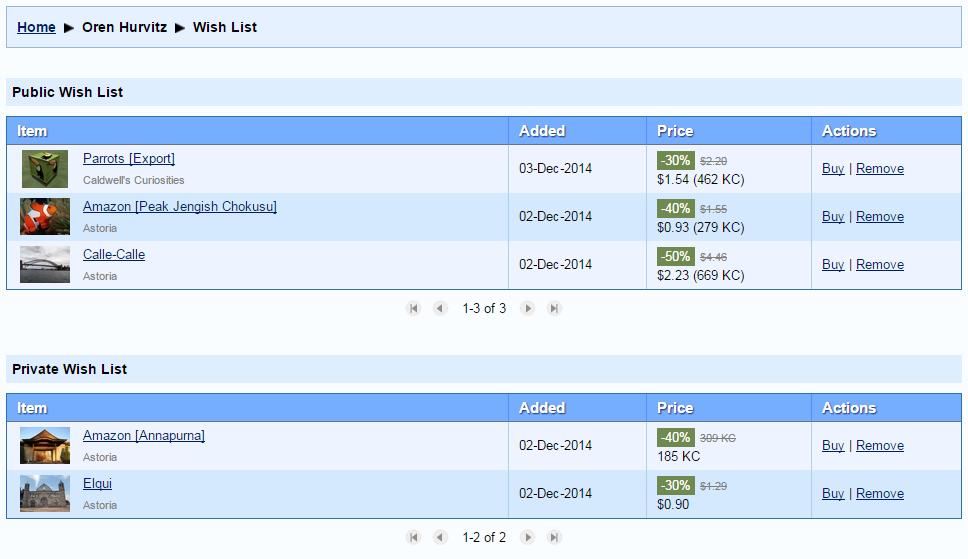
Wish List with Discounts

Analytics

The Analytics pages now have a new column, “Discount”, which shows the discount level. This is useful to show the effect of discounts on sales.
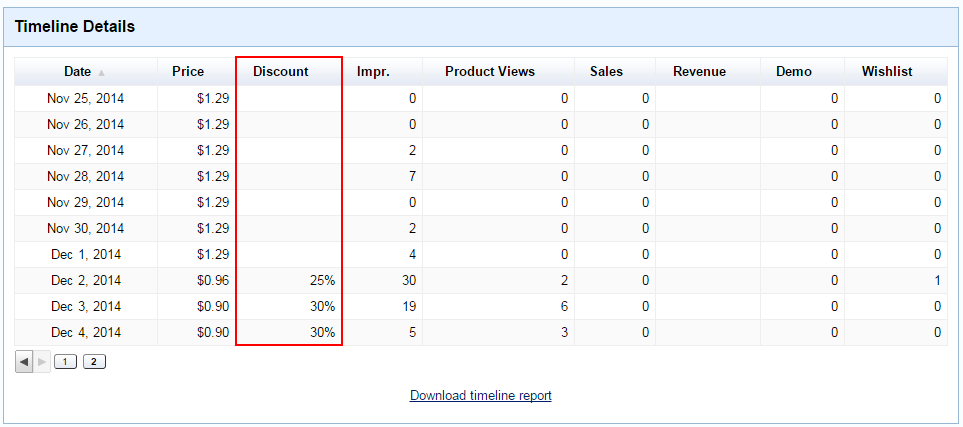
Analytics - Discount Column

As mentioned previously, the Sales Campaigns table includes the revenue that was generated by the products included in each sale.

Thoughts on Sales

Sales Campaigns open up a huge opportunity for savvy content creators to increase their sales. But with great power comes great uncertainty: how best to use sales? Since today is “Day 1” of this feature on Kitely Market, we don’t have data that can help merchants decide what to do. But we do have some information from other sources, and we’re not afraid of speculating.

Virtual items in OpenSim (and Second Life) have some differences from games on Steam or e-books on Amazon. Some of these differences may make sales more effective, and some less.

The first difference is that games and books take weeks to finish, so there’s some resistance to buying more and more of them too quickly. Speaking personally, I probably have 20 games I bought from Steam because they were on sale but haven’t had time to play. In contrast, virtual items can usually be used immediately (to wear or to rez), so their benefit comes shortly after the purchase. Advantage: virtual items.

Games and books are usually more expensive than virtual items, so discounting them provides a bigger benefit to buyers. Do buyers look at the dollar amount they save, or the percentage of discount? We don’t know. But we believe that in this case, advantage: games/books.

Game publishers and book authors typically have only a few items that they’ve created. This causes problems when they decide whether to put their items on sale: if they do lots of sales then people might figure this out and stop buying their items when they’re not on sale. On the other hand, it’s tough to forgo sales altogether. This dilemma is easier for creators of virtual items because they often have a much bigger portfolio of items, so they can realistically put each item on sale only once or twice a year, and still have something on sale all the time. Advantage: virtual items.

Should products be on sale often, or rarely? While they’re on sale they’re shown with the nice big green discount icon, which should increase sales. But if users realize that a merchant does lots of sales then they might stop buying his products for the regular price, which could lead to an overall decline in revenue. This would also have a negative effect on the entire Kitely Market, as it would desensitize buyers to sales so sales will become less effective.

How long should sales last? We allow 1-14 days. Longer sales make it more likely that users will find out about the sale. But shorter sales might create more of an urgency with buyers. We currently think that the average duration for a sale should be a week. This also lines up nicely with Ads, since the minimum duration for an ad is one week.

One particular type of sale is a full-store sale. You could advertise it as, e.g. “40%-80% off everything”. A major sale like this should occur only once or twice a year; last a full two weeks; and use an ad to ensure that people know about it.

Another type of sale would be on a subset of items. E.g.: “Winter Clothing Sale”; “Valentine’s Day Couple Animations Sale”; etc.

And finally, you could try to create some one-day sales that offer big discounts on a single product. This type of sale has been very effective on Steam, but the challenge is to get people to find out that the sale exists before it ends.

Although we believe that discounts will increase total revenue, it’s worth using discounts even if they occasionally result in lower revenue than selling for full price. That’s because the buyers become your customers, and they’re more likely to buy from you again. (In the future we might add ways for merchants to contact everyone who bought from them, e.g. to let them know about new products, updates to existing products, or special offers. We might also let merchants offer discounts or coupons that are only usable by people who have bought from them in the past. Please let us know if you’d like to see features of this type.)

Each product in a sale can have a different discount. You can use this to experiment with different discount levels: e.g., 30% for some products, 50% for others, 80% for yet others, etc. Over time you will learn what works best. One of our planned features (not included in today’s release) is an Analytics mode that lets you easily see all the price levels and discounts that you’ve used, and how much revenue was generated from each one.

If you want to be even more rigorous then you can try using different discounts for the same product. This is more of an apples-to-apples comparison than using different discounts for different products, but it requires long-term planning. In order to get useful statistics you shouldn’t change the discount level for a product in the middle of a sale. This means that you’ll need to use different Sales Campaigns (which must be spaced at least 60 days apart) in order to get such information.

Happy Holidays!

We’ve been working towards the Sales feature for quite a while now.  Even some of the previous big features, such as Analytics and Ads, were created with the Sales system in mind. So we’re glad that we’re finally able to make this feature available, just in time for the holiday season. Let’s make December a month to remember!
Search Kitely Market Sales History

We updated the system today with a couple of improvements to merchant tools and some bug fixes.

Search the Sales History

In Kitely Market, merchants have access to a page that shows their Sales History. One of the most-requested features by our merchants has been the ability to search the sales history in order to find particular transactions, and we’re happy to announce that this is now possible.

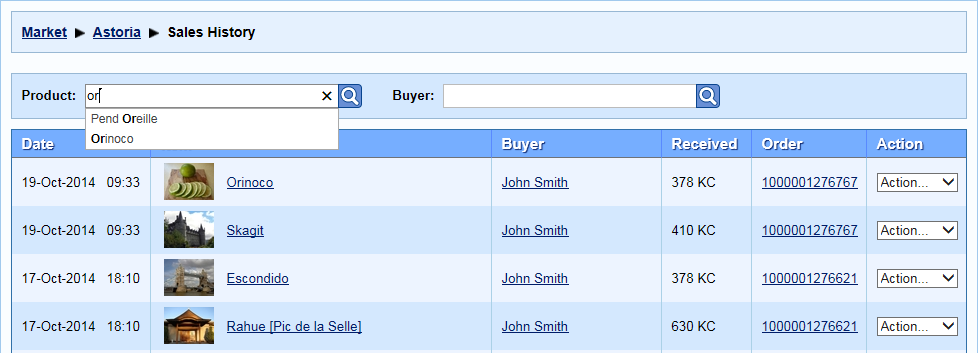
You can search for sales in two ways: sales of a particular product, or sales to a particular user (buyer). You can also combine the two options.

Search Sales History

To perform a search, start typing the name of the product or user that you’re looking for. These text boxes use autocomplete, so once you type a few characters the names of possible matches will appear. Click on the product or user that you want to search for.

Show Prices in Manage Products

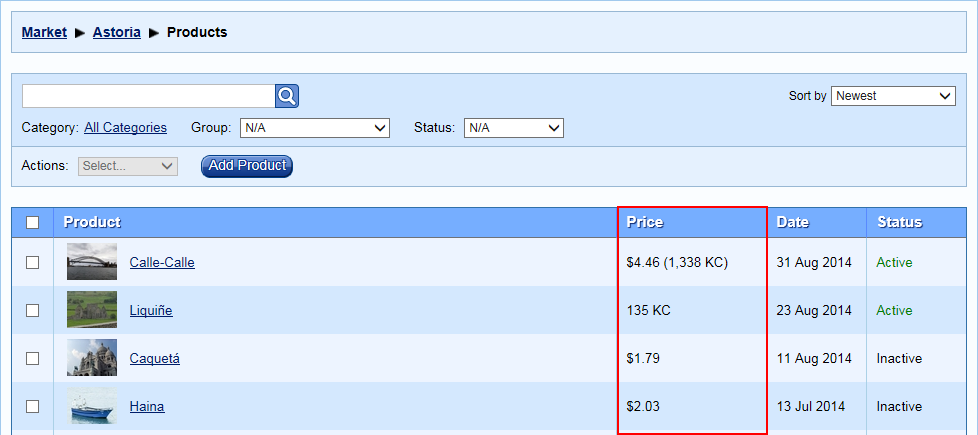
Another page used by merchants is the Manage Products page, which shows all of the products in their store. We’ve added a “Price” column to this table, to make it easier to differentiate between products at a glance. The price shown in this column is the price of the default (first) variation of the product.

Manage Products - Price Column

Other Changes

We fixed a number of bugs related to analytics, and how search engines see the website. These are subtle changes, so most users are unlikely to notice anything different. However, If you advertise in Kitely Market you may see changes in how sales are attributed to your ads.

We also added support for the upcoming ad campaign for Kitely Market.

Related Products and Improved Management Tools in Kitely Market

We updated Kitely Market today with improvements that help merchants manage a large collection of products more easily. Merchants can now use the Manage Products page to quickly find the products they’re looking for, organize them into groups and then perform operations on those groups of products. We also added a “Related Products” feature, which uses this new grouping functionality.

Improved Management Tools

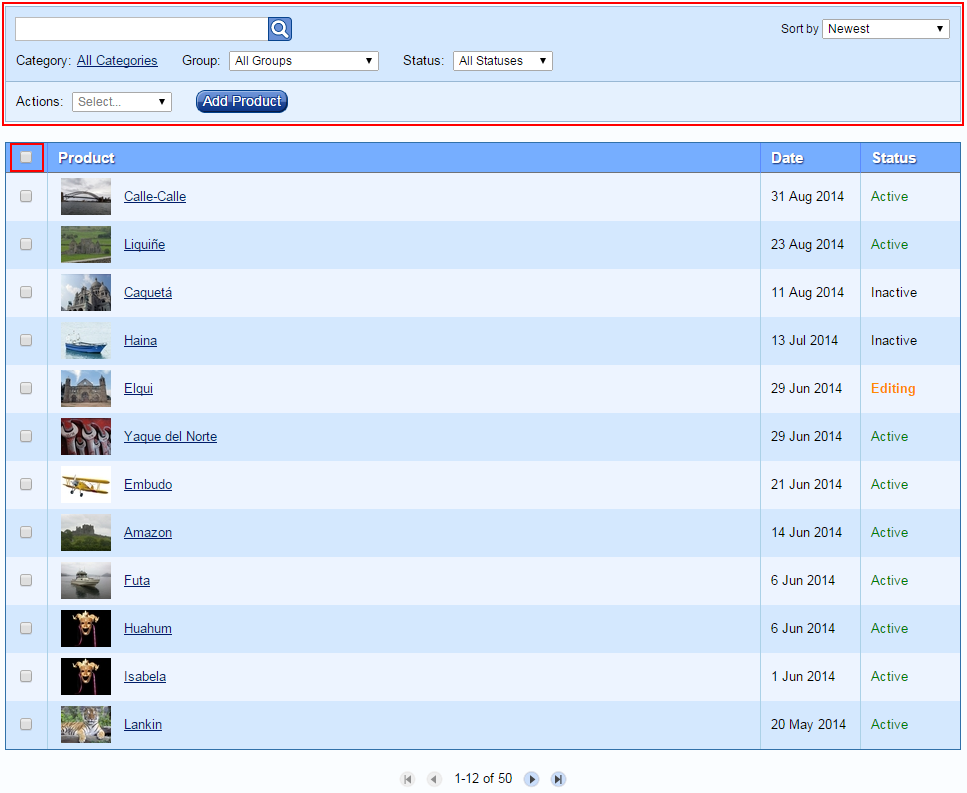
For merchants, one of the most important parts of Kitely Market is the “Manage Products” page. This is where merchants can view all of their products, edit them, and add new products. Previously this page always showed the merchant’s products in reverse chronological order, with no ability to search or filter the products. We’ve now added the ability to search and filter using:

  • Text search
  • Category
  • Group (groups are explained later in this post)
  • Status (Active, Inactive, etc.)
  • Different sort orders (Newest, Best Selling, etc.)

Manage Products

We also added a new sort order, “Name”, which sorts results alphabetically by the product name. This sort order is available in the main search page, too (where regular users can use it).

Another improvement to this page is the addition of a “Select All” checkbox, which selects all of the products in the page. Previously merchants that wanted to select all the products had to click the checkbox next to each product individually.

And finally, in addition to all of these features, the new page works much faster than before!

Product Groups

We’re introducing a new feature today: “Product Groups”. Groups are a way for merchants to organize their products: merchants define groups, and then assign products to these groups. As mentioned in the previous section, the Manage Products page now allows filtering products by group.

Groups aren’t user-visible: they’re for the merchant’s use only.

There are two places where products can be assigned to groups:

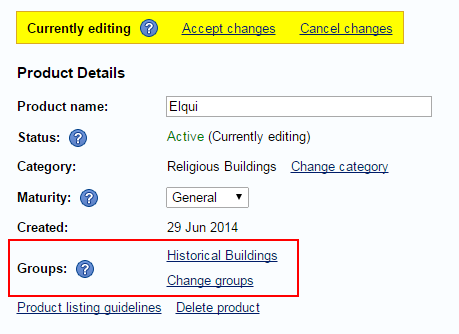
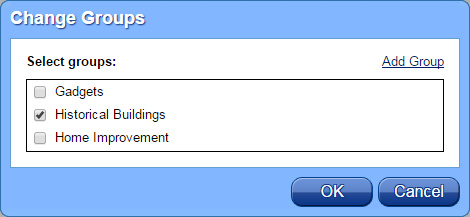
1. In the Edit Product page. Click “Change Groups” to open a dialog where you can choose which groups the product belongs to.

View Groups (One Product)

This is the Change Groups dialog:

Change Groups (One Product)

As usual when making changes in the Edit Product page, this change will only take effect once you click “Accept changes”.

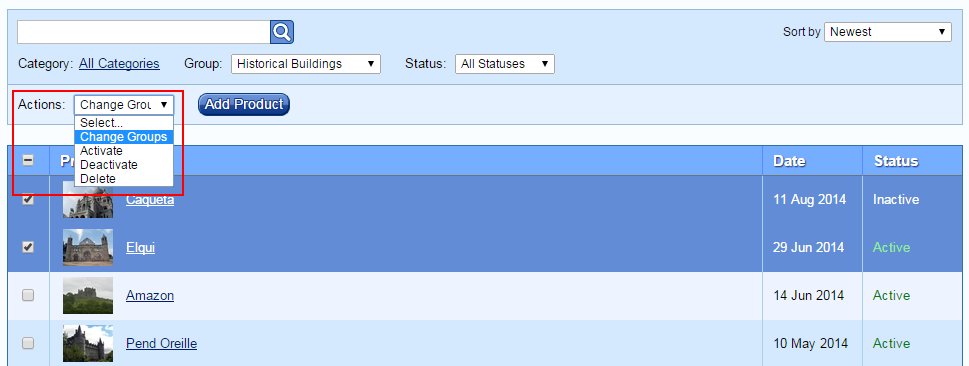
2. You can also assign products to groups in the Manage Products page. This page lets you select multiple products and change their groups at once. To do so, select some products, and then select from the Actions menu: “Change Groups”. The changes you make in the Change Groups dialog will affect all of the selected products.

Batch Change Groups

Unlike the Edit Product page, changes you make in the Manage Products page affect the products immediately (there’s no need to click “Accept changes”).

Managing Groups

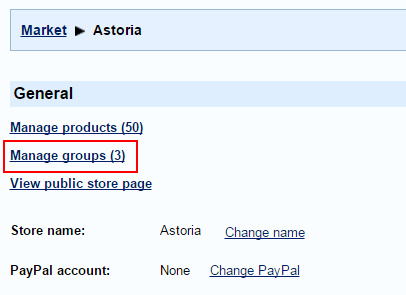
The Manage Groups page lets you add, rename and delete groups. You get to the Manage Groups page by clicking on a link in the Manage Store page:

Link to Manage Groups

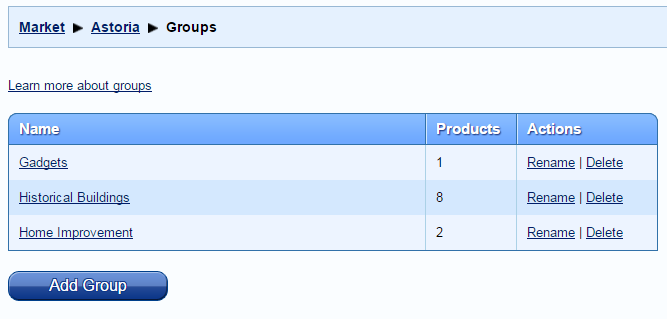
This is what the Manage Groups page looks like:

Manage Groups

Related Products

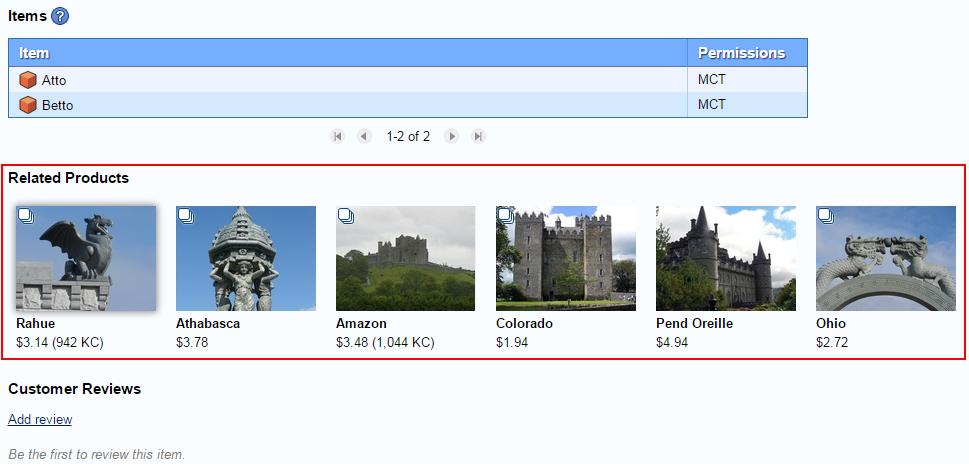
When users view a product in Kitely Market, the product page now optionally shows a section called “Related Products”. This section displays up to six products, which are chosen randomly from among all of the groups that the viewed product belongs to. For example:

Related Products

Thanks to Groups, the Related Products feature is very easy to use. For example, suppose a merchant has a group called “Patio Furniture”, which contains all of their patio furniture products. When the merchant creates a new product of this type, they only have to add that one product to the group. This single action automatically causes the new product to appear as a “Related Product” in all of the other products in the group, and vice-versa. There’s no need to explicitly mark each of the products in the group as a “Related Product” of the new product.

We’ve integrated Related Products into Kitely Market Analytics: there’s a new channel type called “Related Products”. When users click on a product that they see in the “Related Products” section, and later possibly buy that product, the sale is attributed to the Related Products channel.

Related Products - Analytics

Promoting Products in Kitely Market Using Ads

Today we added another major feature to Kitely Market: ads. Ads are important to allow merchants to promote their products, since Kitely Market contains thousands of products and it isn’t always easy for even exceptional products to stand out. The new ads system is fully integrated into Kitely Market’s advanced analytics component. This means that merchants can now easily advertise their products, and track the effectiveness of their advertising campaigns.

How Ads Appear in Kitely Market

When users browse Kitely Market, ads appear above the regular search results. Unlike other marketplaces, Kitely Market supports two types of ads: Product Ads and Store Ads.

Product Ads promote specific products. A Product Ad is tied to one particular product, and shows that product’s thumbnail and details. When the ad is clicked, the Product Page is shown.

For example:

Product Ads
Product Ads

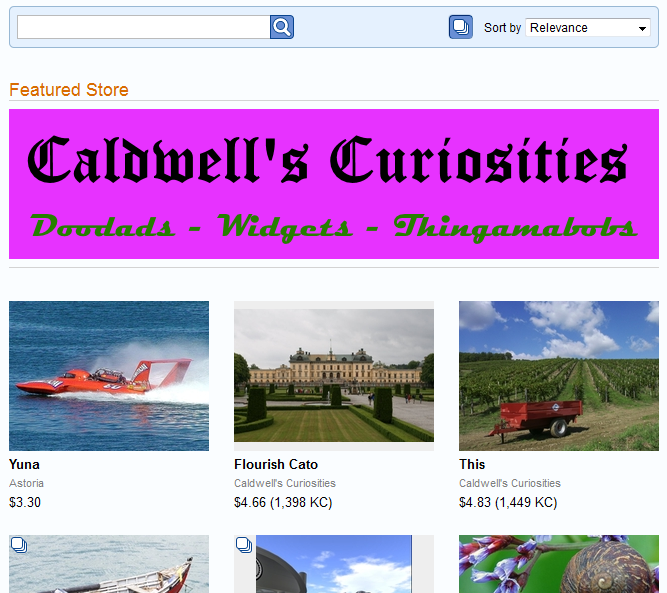
Store Ads promote an entire store. Store Ads look similar to banner ads: they display a custom image that the merchant has uploaded, and they take up as much room as three Product Ads. When the ad is clicked, the Store Page is shown.

For example:

Store Ad
Store Ad

Creating Ads

To create an ad, go to the Manage Ads page by selecting “Go to > Manage Ads” from the navigation menu. Then click “Create Product Ad” or “Create Store Ad”, and fill in the ad details in the dialog.

It’s also possible to create Product Ads from the product page, by clicking “Create Ad”. That’s just a shortcut that automatically fills in the current product in the dialog, so that you don’t have to enter it yourself.

Prices

The price of an ad depends on its duration and where it appears. The location where an ad appears is called its Placement. There are two types of Placements: in the Front Page of Kitely Market, and in a Category.

Product Ads (size 1)

Placement
Price
Front page $0.33 / day
Top level category $0.15 / day
Internal category $0.10 / day

Store Ads (size 3)

Placement
Price
Front page $1.00 / day
Top level category $0.45 / day
Internal category $0.30 / day

Although these tables show the prices in USD, ads may also be purchased using Kitely Credits (KC).

Analytics

When you buy an ad, it’s important to know if it was cost-effective. Ads have two benefits: they can lead directly to sales, and they can increase brand awareness (which increases sales in the long term).

Kitely Market has outstanding Analytics, and we have fully integrated ads into the analytics component. Ad analytics appear in two places:

First, there’s a dedicated Manage Ads page that shows all of the ads in your store, and each ad’s performance: how many times it was viewed (“impressions”); how many times it was clicked; and how many sales resulted directly from the ad. The number of impressions is a measure of the effectiveness of the ad in promoting your brand.

Second, the main Analytics page has a new type of Channel called “Ads”, which shows product impressions and views that resulted from ads.

There are some more details involved with how ads work. For those who are interested, see the Ads documentation page for more information.

Other Improvements

We’ve updated to OpenSim 0.8.0.2, which contains several bug fixes.

We’ve updated to Mono 3.10.0, which contains several bug fixes and performance improvements.

We fixed a bug that prevented multiple clothing layers from working in some cases. This fix is effective, but it only works in Kitely for now because the real bug in the viewer, and we just implemented a server-side workaround. We reported this bug and how to solve it to the Firestorm and Singularity teams, and Firestorm has already fixed it, so it will be part of the next release of Firestorm. At that point all users of OpenSim (and Second Life) will get this fix.

Advanced Analytics for Kitely Market

We’re proud to announce that we’ve added a major new feature to Kitely Market: detailed, actionable analytics. This new system enables merchants to track how their store performs, and gives them insights on how to improve their sales. In addition to its already considerable utility, the analytics system is also a prerequisite for several exciting features that we’ll be rolling out in the coming months. These features will help make Kitely Market the most advanced virtual-goods marketplace available on any virtual world platform.

Today’s update also includes a couple of other user-requested features.

Overview

Analytics provide merchants with information about how people interact with their products in the Kitely Market website: how often the products are viewed; how often people who view the products choose to buy them; which products sell best; and much more. This information is useful for deciding which new products to add to the market, and how to set prices in order to maximize sales.

Analytics are available for each product individually, as well as for the entire store as a whole.

Store Analytics

If you have a store in Kitely Market then you can get to its analytics page from the navigation menu:

Navigation Menu: Store Analytics

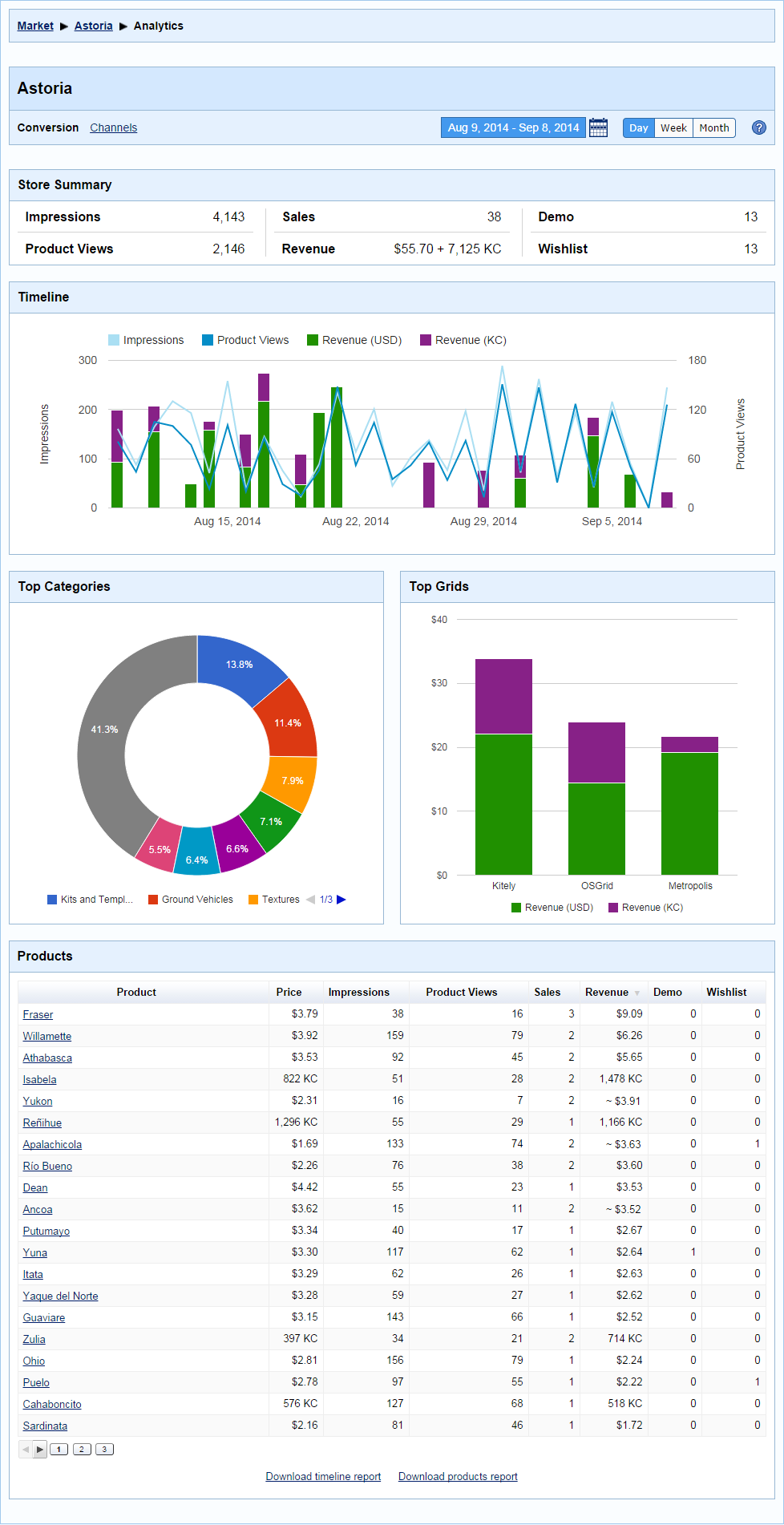
This is what the Store Analytics page looks like (using a demo store, “Astoria”):

Let’s go through the parts of this page one by one.

Header

Analytics Header

On the left side of the header you can choose which group of analytics to display:

  • Conversion – shows how many times your products were viewed, and the relationship between views and sales (this relationship is called “Conversion”).
  • Channels – shows how people find your products.

On the right side of the header there are date selection controls. The date picker lets you choose which dates to view (the default is the last month). The resolution buttons determine the resolution in which the data is displayed: Day, Week or Month. For example, if you choose a large date range (e.g., a year) then viewing 365 separate data points would be overwhelming. It’s more useful to view just 12 data points instead, so the resolution is automatically switched to Month (but you can then switch it to Day or Week if you want).

Store Analytics – Conversion

This section describes the charts that are shown if you select the Conversion option in the header.

Store Summary

Store Summary

This panel shows the total number of views and sales of your products in the selected date range.

  • Impressions – how many times your products’ thumbnails were viewed.
  • Product Views – how many times people viewed the Product Page of your products.
  • Sales – how many times your products were purchased.
  • Revenue – how much you earned from these sales. The revenue is shown after Kitely’s fees have been deducted.
  • Demo – how many times users sent themselves demos of your products.
  • Wishlist – how many times users added your products to their Wishlists.

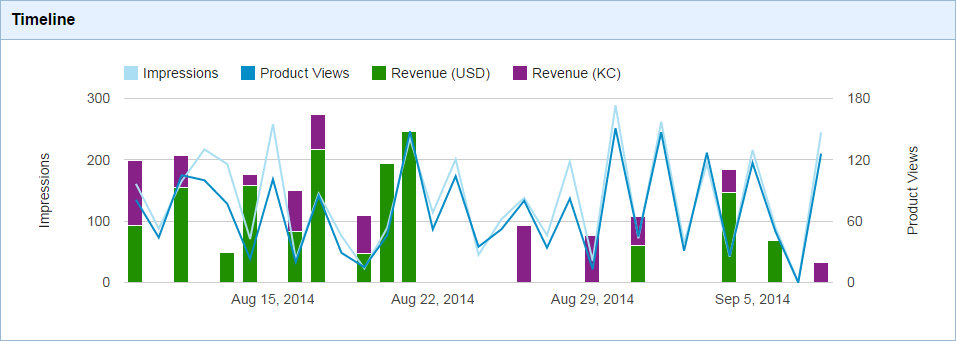
Timeline

Timeline Graph

This graph shows your products’ Impressions and Product Views over the selected date range. It also shows the revenue from sales. The graph makes it easy to discover relationships between product exposure and revenue.

You can hover your mouse over any data point in the graph to get the exact value of that point.

Top Categories

Top Categories Graph

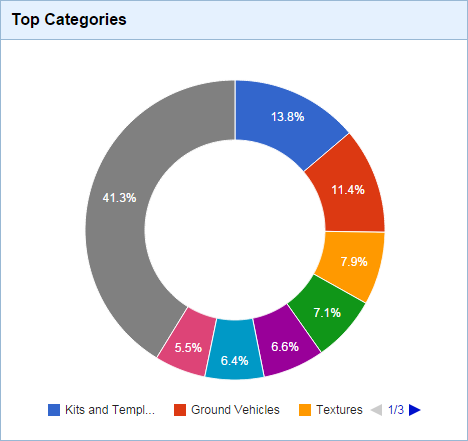
This chart shows which of your categories sell the most (by revenue). This can help you decide which types of products to add to your store.

Top Grids

Top Grids Graph

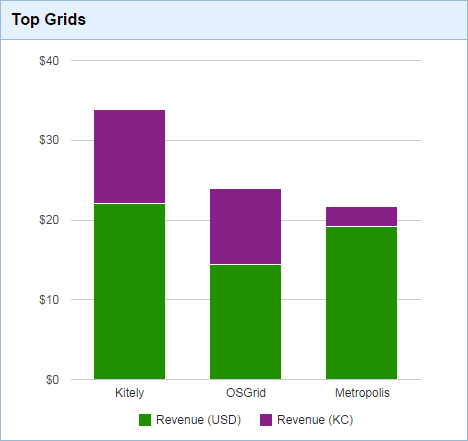
This chart shows where your products are delivered the most. (If you don’t have Exportable products then only Kitely will appear in this chart.)

Products

Products Table

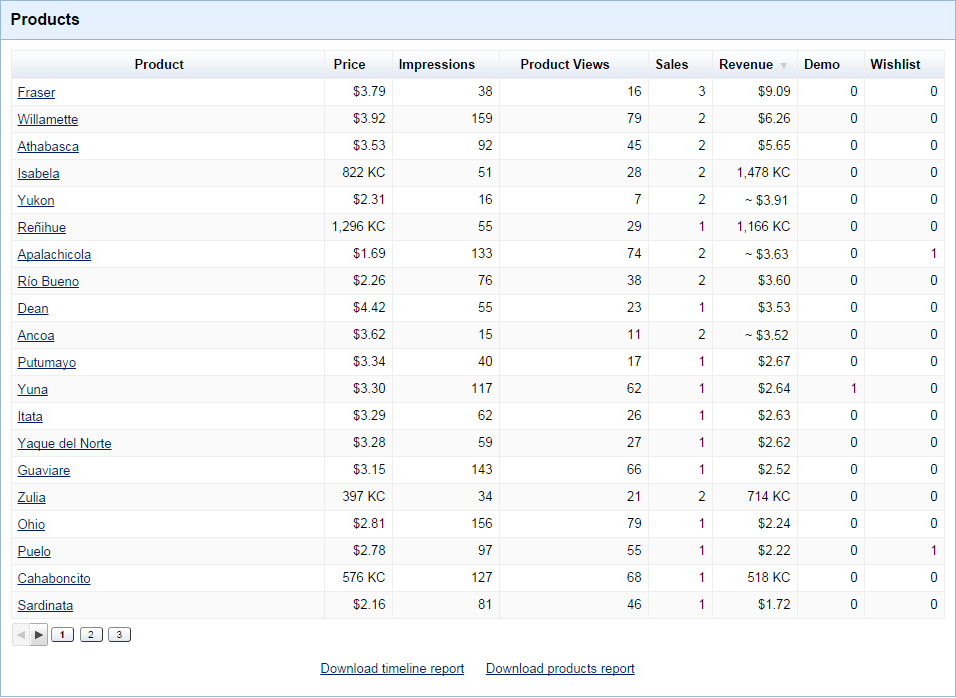
This table shows each of the products in your store, with detailed statistics about their views, sales, etc. Click on the column headers to sort by different statistics.

At the bottom of this table there are links to download CSV reports:

  • Download timeline report – creates a report that contains the data shown in the Timeline graph, i.e. the total statistics of the store for each day in the date range. (Or each week or month, if that’s the resolution that you selected.)
  • Download products report – creates a report that contains the data shown in the Products table.

Store Analytics – Channels

This section describes the charts that are shown if you select the Channels option in the header.

Channels: Top Level

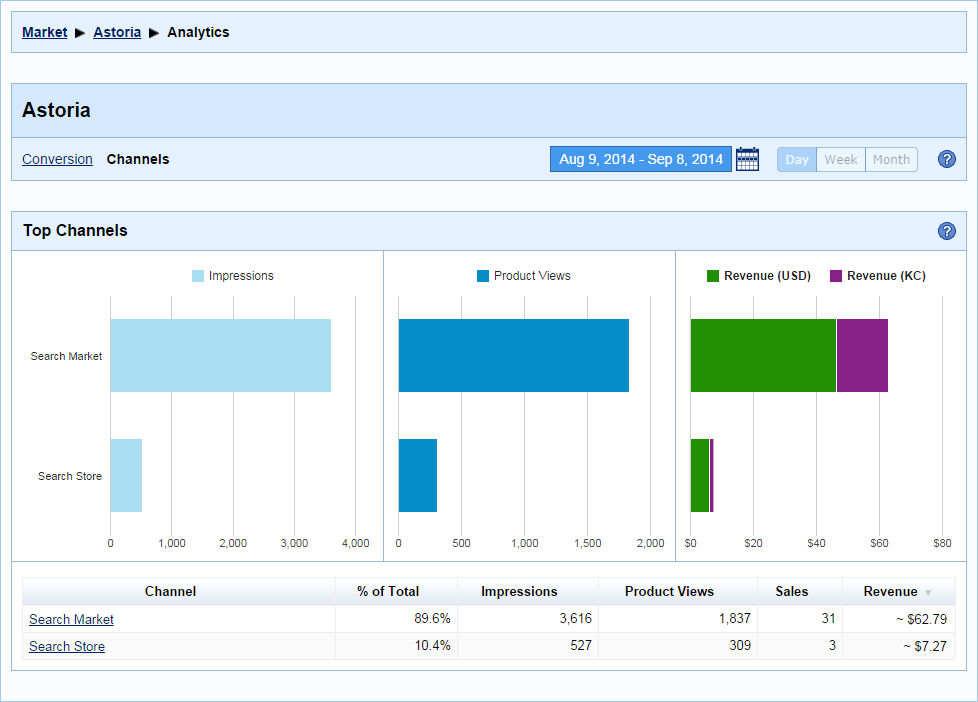
Channels track how people get to your products. Each way in which people can get to your products is a Channel. There are three top-level channels:

  • Direct – the person entered your product page directly, without coming from a search page. This can happen if the person had bookmarked the URL, or refreshed the browser while on the product page.
  • Search Market – the person was browsing Kitely Market, and saw your product.
  • Search Store – the person was browsing Kitely Market inside your store, and saw your product. We consider this a different channel from “Search Market” because when a person is inside your store your products don’t need to compete with other merchants’ products for that person’s attention.

The “Search Market” and “Search Store” channels are further subdivided into these channels:

  • Front Page – the person saw your product in the front page of Kitely Market or the front page of your store (i.e., without entering any specific search terms or viewing a specific category).
  • Categories – the person clicked on a specific category, and saw your product inside that category.
  • Keywords – the person entered text in the search field.

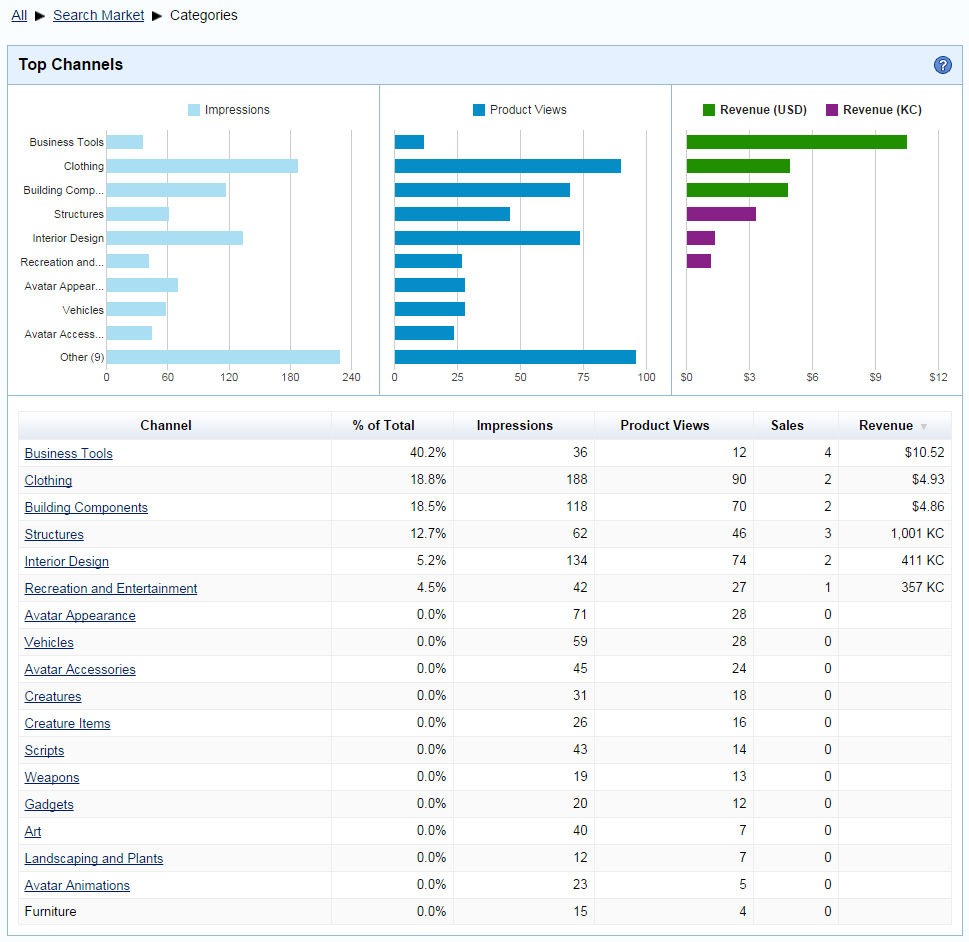
For example, you can see which categories people find your products in, and how that affects which of your products they actually buy. In the following chart, notice that the “Business Tools” category is over-performing: it has a low number of views but contributes the most to the merchant’s revenue. That means that perhaps the products in that category are especially desirable, or face low competition. On the other hand, the “Interior Design”  category is under-performing, with high views but low sales. Perhaps something can be done to improve the products in that category.

Channels: Categories

As you can see above, the Channels page shows three charts side by side. These charts form a sort of table: each of the rows corresponds to one channel, and each of the charts shows one statistic for that channel. We use three separate charts instead of a single chart because each of these statistics (Impressions, Product Views and Revenue) uses a different scale.

You can click on the column headers in the table to change the sort order. When you do that, the charts change to show the top channels according to the current sort order. If you sort by the Sales column then the Revenue chart  will be replaced with a Sales chart.

Product Analytics

All of the charts described above contain statistics for your entire store. You can also view statistics for individual products. There are two ways to get to the product analytics page:

  • In the Store Analytics page, go to the Products table and click on a product name.
  • In the main Product Page, click on the Analytics link.

Most of the charts shown in the Product Analytics page are identical to the charts shown in the Store Analytics page, so we won’t discuss them again. However, the following charts are unique to the Product Analytics page:

Variations

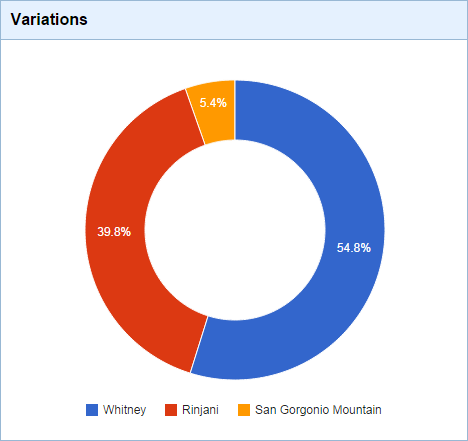
Variations Graph

This chart shows the distribution of sales between your product’s variations. This can help you find out which colors people prefer, whether they prefer to buy Export or No-Export variations, etc.

Timeline Details

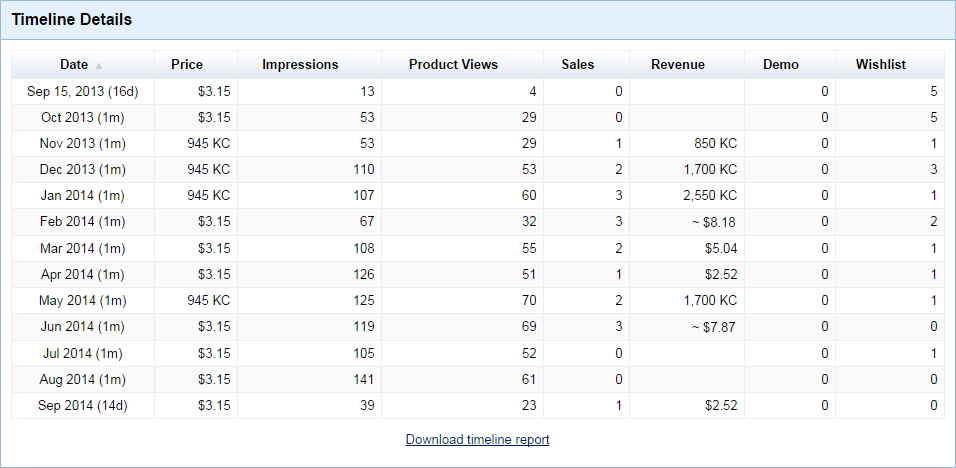
Timeline Table

This table shows a numerical representation of the same data that is shown in the Timeline graph at the top of the page. By comparing the “Price” and “Sales/Revenue” columns you can find the effect that changing a product’s price has on its sales and revenue.

Additional Notes

You can learn more about how analytics work in the Kitely Market Analytics section of our wiki. It explains a few subtle points that we didn’t mention in this blog post.

The analytics system was completed today, September 16, 2014. Data such as Impressions, Product Views, etc. is only partially available before this date (and not available at all prior to August 8, 2014). However, sales data is fully available for all dates.

The analytics charts are updated once per day, after the day ends (in GMT time). So if you change the date range to include the current day then you’ll only see some sales information, but not full analytics. For this reason, the default date range doesn’t include the current day.

Other Features

Besides analytics, we also implemented a couple of features that were requested by our users:

Merchants have a feature available called “Test delivery” that sends their avatar a test version of a product. This feature can be used to deliver the product to other avatars as well, by changing the delivery target in the Shopping Cart. In order to make it clear which avatar will get the test delivery, we now show a message with the name of the receiving avatar before delivering the product.

In the Edit Product page, we added a Delete All button to the Variation Items table. This button deletes all of the variation items at once (instead of having to select them one at a time). This is useful when updating a variation, since at that point merchants frequently need to delete all of the existing items and upload new items.

New Kitely Market Homepage and Increased Idle Timeout

Over the next few weeks we’ll introduce several big upgrades to Kitely Market. Today we’re releasing the first (and smallest) of these upgrades: a new homepage for Kitely Market. Today’s update also includes an increase of the idle timeout for world managers and Premium Account members.

New Homepage for Kitely Market

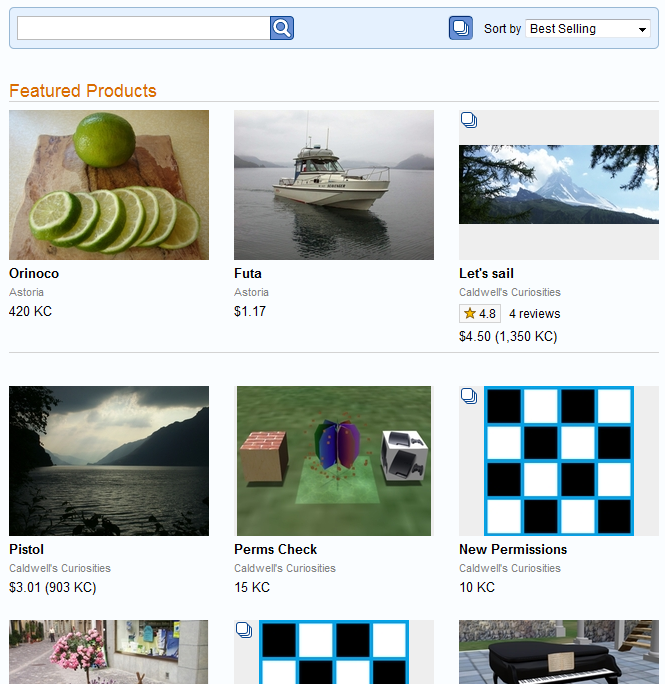
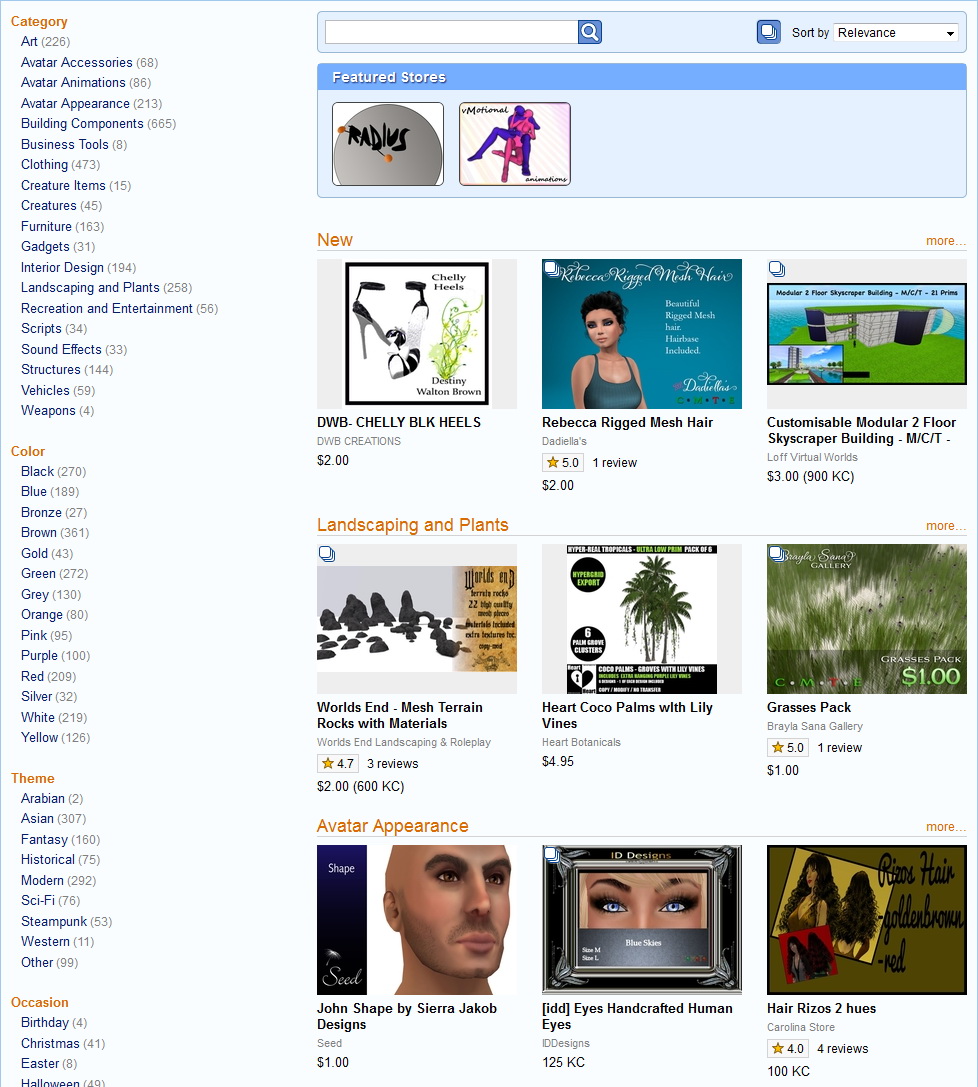
When you visit Kitely Market, before you execute any search, you see the Kitely Market “Homepage”. Before today we didn’t have a special homepage for Kitely Market, so we simply showed 15 random products. But starting today the homepage will show products that are likely to be interesting and useful to you. We do this by showing a few popular categories, and some of the most interesting items in each category. The new homepage also displays a few of the newest products, which will help these products get exposure.

Kitely Market Home Page

If you’re logged-in when you visit Kitely Market then the homepage will become even better, because it will be customized to you. For example, the products that you see may change depending on which products you’ve bought in the past.

Increased Idle Timeout for World Managers and Premium Account Members

Kitely automatically disconnects avatars who have been idle in-world for 30 minutes. This ensures that worlds don’t keep running indefinitely if you forget to close your viewer. However, we’ve received complaints that sometimes this timeout is too short. That’s especially a problem for builders, who might be working in Blender for a while and then return to the viewer to find that they’ve been disconnected, and have to login again.

We’ve therefore decided to increase this timeout to 2 hours for world managers in their own world, as well as for all users who have a Premium Account (even when they visit other peoples’ worlds). This will eliminate timeouts in the most common cases: people who are building their world, or are actively using their world but not moving (e.g., using voice).

Some User Interface Improvements

We updated our website today with a couple of user interface improvements.

Shorter “New World” and “Manage World” Dialogs

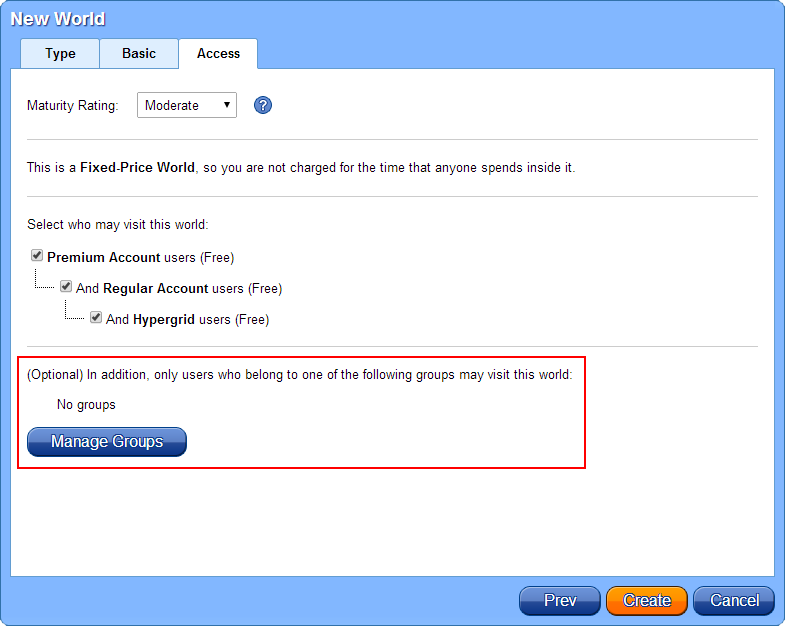
We redesigned the New World and Manage World dialogs to make them shorter, because previously they were too high to be fully displayed on some low resolution screens. In the new dialogs, the selection of Access Control Groups has been moved to a separate dialog:

Manage Access Groups

Direct Access to Try Demo

Kitely Market allows products to define Demos. Previously users who wanted to try a demo had to perform two steps:

  1. Add the product to the Shopping Cart
  2. In the Shopping Cart, click “Try demo”

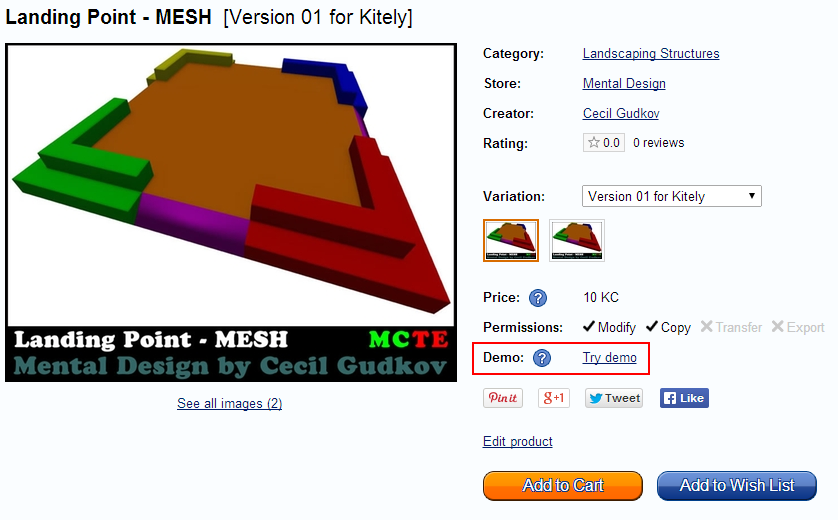
In order to make Demos more accessible we simplified this process, turning it to just one step, by moving the “Try demo” link to the Product Page:

Try Demo

OpenSim 0.8 and Improved Search

We updated Kitely today with several improvements, including an enhanced version of OpenSim 0.8; experimental support for BulletSim; and better in-world search. We contributed some of our patches to OpenSim core so other grids will be able to benefit from them as well.

OpenSim 0.8

We upgraded to OpenSim 0.8. For the full list of improvements, see the Release Notes.

We spent several weeks testing this version of OpenSim, and we found and fixed several problems. One of the most important fixes was for a problem where attachments disappear from the avatar after a Hypergrid teleport. We fixed this bug in Kitely, and we also contributed the patch to OpenSim core. Regions in other grids that run the latest version of OpenSim (i.e., not an official release) should already have this patch. However, regions that use only official releases of OpenSim still suffer from this bug. Therefore, if you Hypergrid teleport to a region that doesn’t have the latest cutting-edge version of OpenSim then your attachments may disappear from your avatar. They’re still in your inventory, however, so you’ll be able to reattach them once you return to the Kitely grid.

On top of our frequent code contributions to OpenSim, our enhanced version of OpenSim includes more than 400 features and optimizations that are exclusive to Kitely.

Changing the Physics Engine

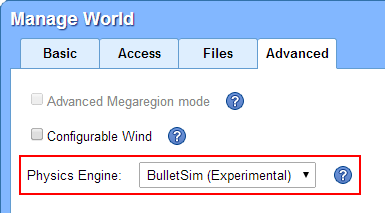
We now allow world managers to choose which physics engine their world uses. This is done in the Advanced tab of the Manage World dialog:

Select Physics Engine

There are three options:

None – no physics. Avatars can walk through any objects in the world. This is sometimes useful for testing, e.g. to check if the cause of high lag in a world is due to the physics engine.

ODE – uses the Open Dynamics Engine library. This is the most widely used physics engine in OpenSim, and it’s the default on Kitely.

BulletSim (Experimental) – uses the BulletSim library. It has some improvements and some drawbacks compared to ODE. If you don’t have a specific reason to choose BulletSim then we recommend sticking with ODE.

We’ve been testing BulletSim for a while now, and unfortunately it doesn’t seem ready for general use. When a world includes moderately complicated Physical objects, BulletSim is very slow (much slower than ODE). We’ve reported these problems and we hope for a solution, but in the meanwhile we strongly recommend using ODE. Nevertheless, we’ve enabled the option of using BulletSim in order to facilitate testing. If the problems with BulletSim become overwhelming then we will remove this option (i.e., leaving only the options “ODE” and “None”).

Improved In-World Search

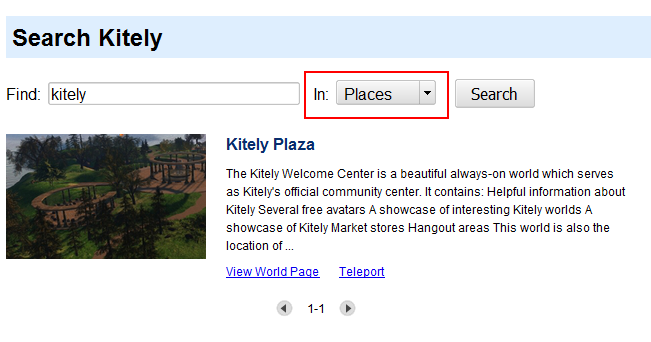
The in-world search page (which is reached by pressing Ctrl+F) now allows searching for worlds. (Previously it only allowed searching for users.) When you find a world you like, you can teleport to it. This doesn’t replace Kitely’s main search page; it’s only used when searching in-world.

Find Worlds In Viewer

Customer Testimonials

We now show a few customer testimonials in the homepage. We want to send a HUGE thank-you to the people who agreed to let us publish their quotes! These testimonials are important to show prospective new users that other people are using our service and find it useful.

Other Improvements

There was a problem where avatars would hover a little above the ground; now they should appear to walk directly on it. Note that this can only be tested when walking on flat terrain or prims, since when walking on slanted terrain the issue of where to show the avatar’s feet is very complicated and therefore it isn’t easy to tell if the avatar is appearing in the correct height or not.

We improved the World Map: the maps should now render meshes more accurately. Since we only update map tiles once per day, it will take a little time before this change becomes visible.

We’ve enabled a system called XBakes, which reduces the time that it takes avatars to fully rezz when they enter a world.

We now prevent the creation of users that have an underscore in their first name, because Firestorm doesn’t allow such users to login.

Updated Mono and Faster Mesh Loading

We updated the system today with several performance and reliability improvements.

First, we changed the way viewers download meshes from Kitely to make mesh downloads faster. This means that worlds that use many meshes should render faster in viewers, while exhibiting less lag.

Next, we upgraded from Mono 3.2.3 to Mono 3.4.0. (Mono is part of the system software that runs Opensim.) The new version of Mono includes numerous bug-fixes and performance improvements.

Finally, we now allow using the character “+” in email addresses when signing up to Kitely. This is useful in some cases, e.g. when an educator uses gmail sub-email accounts to create Kitely accounts for his or her students without needing to manage multiple email accounts.

New Homepage and Many Bug Fixes

We updated the system today with several improvements and bug fixes. We also made progress in our branding project, with a new homepage that is much more professional-looking than before. The new homepage explains what Kitely does in a way that even users who don’t already know virtual worlds can understand. It includes many screenshots, and we’d like to thank all the Kitely users who donated their time and creativity to help us create these images.

Kitely Homepage

Improvements

For a world manager, when you view your account history to see who has visited your world, we now show the profile pictures of Hypergrid users.

When you buy products from Kitely Market for delivery to another grid, you are now allowed to review these products. Previously only the user who received the products could review them, but this was useless for Hypergrid deliveries since the receiving user isn’t a Kitely user (by definition), so they can’t login in order to review the products.

For users with many items in their Wish List, only the first 12 items were shown. We added paging buttons that allow you to view all the items in the Wish List.

We now prevent login to a world if the entry point to the world is in a banned parcel. This rarely happens, but when it did happen the previous behavior was that your avatar appeared to enter the world but then failed with a cryptic error message. Now we show a nicer error message 🙂

Bug Fixes

You can now use the “Home” command (Ctrl-Shift-H) while in a foreign grid in order to return to Kitely. If you haven’t defined a Home location then you’ll be teleported to the Kitely Welcome Center.

We fixed a problem where in some cases, when you took an object in a foreign grid and brought it back to Kitely, the item turned out to be non-Exportable. This happened if the item didn’t have Copy+Transfer (CT) permissions. But it was a silly restriction since the item had started out its life in a different grid, so there’s no point in keeping it from leaving Kitely. To solve this, we now flag items that came from a foreign grid as being “foreign”, which means that they’re allowed to be Exported even if they don’t have CT permissions. Note that this change doesn’t affect items that are created in Kitely (including items that enter Kitely using Upload OAR, when creating or replacing a world).

We fixed a certain peculiarity in the World Map. It’s possible to type in the name of a region in the World Map, and then teleport to that region. But there are two formats for entering region names: for regions in the current grid you’re supposed to enter only the name of the region (e.g., “Kitely Welcome Center”), whereas for regions in other grids you need to enter their full Hypergrid address (e.g., “grid.kitely.com:8002:Kitely Welcome Center”). If you tried to enter the Hypergrid address while in Kitely then the map would fail to find the region. This is a problem because our World Pages show the Hypergrid address of worlds, so it’s natural for users to try to enter it into the World Map. We fixed it so it’s now possible to enter the Hypergrid address of a Kitely world even while you’re in Kitely, and the World Map will find the region and let you teleport to it.

We fixed a bug that prevented Export World from working in worlds with many prims. This is a recent bug; it was introduced during the big Hypergrid update. If you’ve tried to export your world and failed then please try again now; it should work.

We fixed a bug where very large deliveries from Kitely Market to foreign grids could fail. There was a certain limit in place, which we’ve now greatly increased.

We fixed a permissions bug: an object’s Next Owner permissions ignored the permissions of the items inside the object. For example, suppose you rez a box, set its Next Owner permissions to “CT”, and then place inside it an item whose Next Owner permissions are just “C”. Then, you take the entire box into your inventory. Previously the box’s Next Owner permissions ignored the items inside it, so the item in your inventory got Next Owner permissions of “CT”. Now, the item will get the correct Next Owner permissions of “C”.

In rare cases, some Hypergrid users who tried to visit Kitely couldn’t enter because their avatar names were not allowed in Kitely. This restriction has been removed for foreign users, because they aren’t able to change their names. (It’s still in place for Kitely users, because for Kitely users the name validation takes place when creating a new account, and at that point Kitely users can easily choose a different name.)