Avatar Groups, Profiles and Offline IM

We’ve updated our service today with several new features. Most notably, you can now select which groups of users will be able to enter your worlds even if you didn’t use Facebook or Twitter to sign up to Kitely.

Avatar Groups

We now support OpenSim groups. Groups enable you to allow only selected users to build in your worlds. Groups are also useful for sending instant messages to multiple people at the same time. These options are available inside your virtual world viewer; see this page for more information.
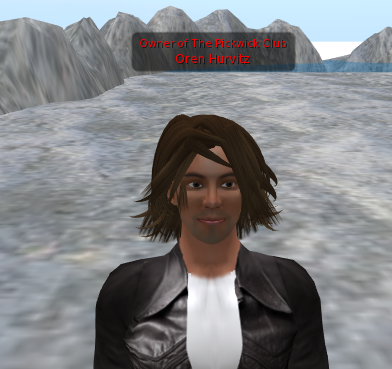
A user with a group title

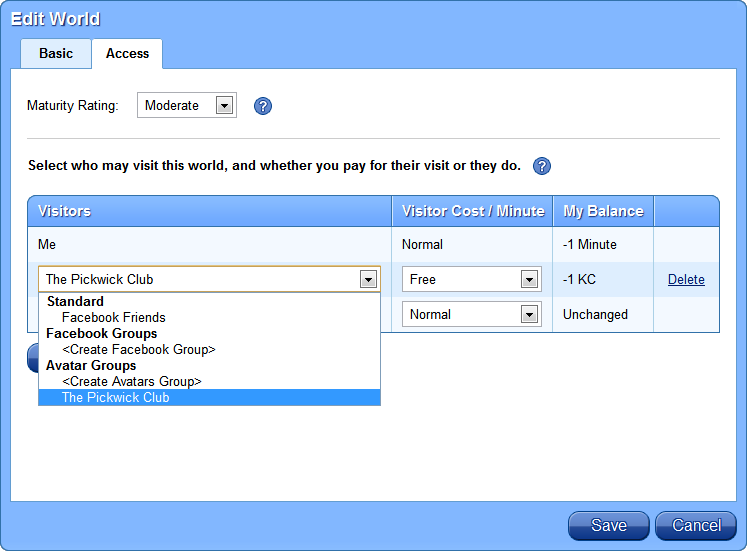
You can also use these Avatar Groups to control who can access your worlds. Previously it was only possible to specify access options using Facebook Groups and Twitter Lists, which means that if you did not sign up for Kitely using Facebook or Twitter then you had only two options for access control: “Only Me” and “Everyone”. Now you have the option of creating or joining a group in a virtual world, and then allowing free access to your world only to members of that group.

Here’s how to add an avatar group to a world’s access permissions:  open the world’s Edit World dialog; press the Add Visitors button; and select the group you want from the Avatar Groups section. It lists all the OpenSim groups that you are a member of.
User Profiles

You can now share details about yourself with other users and view the information that other people have chosen to share about themselves.

Offline Instant Messaging

If you send an instant message to a user that is currently not logged-in then your message will be saved, and delivered the next time that user logs-in.

Security Enhancements

We’ve changed the default world settings in order to prevent unscrupulous users from destroying peoples’ hard work, or annoying other users. All new worlds are now configured to allow only the world manager to build in them. “Pushing” is also disabled by default. In order to protect our existing users, we’ve also applied these settings to all of the worlds currently in Kitely.

If you do want to allow others to build in your world then simply enable that option for that world using your virtual world viewer. However, for your protection we recommend that you don’t allow just anyone to build in your world. Instead, use Groups to give build permissions only to users that you trust.

Improved OAR Format

We’ve updated the OAR format in order to save your region’s Telehub, if you have one. A Telehub is a way to control where users appear when they enter your world. There is one caveat, however: telehubs only work if you disable Allow Direct Teleport in the Estate tab, but that option is not saved in the OAR because technically it isn’t part of the region (it belongs to the Estate). Therefore, if you load an OAR with a Telehub, and the telehub doesn’t work, you may need to disable Allow Direct Teleport.

(By the way, if you want to set the starting position in your world then Telehubs aren’t the easiest way: the easiest way is to use a Landing Point. However, Telehubs have a few features that Landing Points don’t have so they are sometimes useful.)

Updated Kitely Plugin

We’ve updated Kitely Plugin on Windows to version 2.0.1. The only difference from version 2.0.0 is that we use a new digital certificate, because the previous one has expired. The Mac OS X plugin hasn’t changed, so its latest version is still 2.0.0.
Supported OSSL Functions

Here’s the full list of OSSL functions, and who may call each function.

This list was last updated on October 2026, for functions integrated from OpenSim 0.9.3.

Allowed for Everyone

osAdjustSoundVolume
osAESDecrypt
osAESDecryptFrom
osAESEncrypt
osAESEncryptTo
osAngleBetween
osApproxEquals
osAvatarType
osCheckODE
osClearInertia
osClearObjectAnimations
osCollisionSound
osDrawEllipse
osDrawFilledEllipse
osDrawFilledPolygon
osDrawFilledRectangle
osDrawImage
osDrawLine
osDrawPolygon
osDrawRectangle
osDrawResetTransform
osDrawRotationTransform
osDrawScaleTransform
osDrawText
osDrawTranslationTransform
osForceBreakAllLinks
osForceBreakLink
osForceCreateLink
osFormatString
osGetApparentRegionTime
osGetApparentRegionTimeString
osGetApparentTime
osGetApparentTimeString
osGetCurrentSunHour
osGetDrawStringSize
osGetGender
osGetGridCustom
osGetGridGatekeeperURI
osGetGridHomeURI
osGetGridLoginURI
osGetGridName
osGetGridNick
osGetHealRate
osGetHealth
osGetInertiaData
osGetInventoryDesc
osGetInventoryItemKey
osGetInventoryItemKeys
osGetInventoryLastOwner
osGetInventoryName
osGetInventoryNames
osGetLastChangedEventKey
osGetLinkColor
osGetLinkInventoryDesc
osGetLinkInventoryItemKey
osGetLinkInventoryItemKeys
osGetLinkInventoryKey
osGetLinkInventoryKeys
osGetLinkInventoryName
osGetLinkInventoryNames
osGetLinkNumber
osGetLinkSitActiveRange
osGetLinkStandTarget
osGetMapTexture
osGetNotecard
osGetNotecardLine
osGetNumberOfNotecardLines
osGetParcelDetails
osGetParcelDwell
osGetParcelID
osGetParcelIDs
osGetPhysicsEngineName
osGetPhysicsEngineType
osGetPrimCount
osGetPrimitiveParams (*5)
osGetPSTWallclock
osGetRegionSize
osGetRezzingObject
osGetScriptEngineName
osGetSimulatorVersion
osGetSitActiveRange
osGetSitTargetPos
osGetSitTargetRot
osGetSittingAvatarsCount
osGetStandTarget
osGetSunParam (Replaced the deprecated osSunGetParam)
osGetTerrainHeight (Replaced the deprecated osTerrainGetHeight)
osGetWindParam
osGiveLinkInventory
osGiveLinkInventoryList
osIsNotValidNumber
osIsNpc
osIsUUID
osLinkParticleSystem
osListAsFloat
osListAsInteger
osListAsRotation
osListAsString
osListAsVector
osListenRegex
osListFindListNext
osListSortInPlace
osListSortInPlaceStrided
osLocalTeleportAgent (*7)
osLoopSound
osLoopSoundMaster
osLoopSoundSlave
osMatchString
osMax
osMessageObject
osMin
osMovePen
osNpcLookAt (*1)
osOldList2ListStrided
osParticleSystem
osPlaySound
osPlaySoundSlave
osPreloadSound
osRegexIsMatch
osRemoveLinkInventory
osReplaceParcelEnvironment (*2)
osReplaceRegionEnvironment (*3)
osReplaceString
osResetAllScripts
osResetEnvironment (*4)
osRound
osSetFontName
osSetFontSize
osSetInertia
osSetInertiaAsBox
osSetInertiaAsCylinder
osSetInertiaAsSphere
osSetLinkSitActiveRange
osSetLinkStandTarget
osSetPenCap
osSetPenColor (Replaced the deprecated osSetPenColour)
osSetPenSize
osSetPrimFloatOnWater
osSetPrimitiveParams (*5)
osSetProjectionParams (*6)
osSetSitActiveRange
osSetSoundRadius
osSetStandTarget
osSHA256
osSlerp
osStopSound
osStringEndsWith
osStringIndexOf
osStringLastIndexOf
osStringRemove
osStringReplace
osStringStartsWith
osStringSubString
osTeleportOwner
osTemperature2sRGB
osTriggerSound
osTriggerSoundLimited
osUnixTimeToTimestamp
osVecDistSquare
osVecMagSquare
osVolumeDetect
osWindActiveModelPluginName

Notes:
(1) Currently anyone can apply this to any NPC, but this may change in the future.
(2) May be called by anyone who has permission to edit the parcel.
(3) May be called by anyone who has permission to edit the region.
(4) May be called by anyone who has permission to edit the parcel or the region (depending on which environment is being reset).
(5) Works only on objects that the script’s owner owns and may modify.
(6) When called with an object’s key, works only on objects that the script’s owner owns.
(7) Teleports only the script’s owner, avatars that gave the script permission to teleport them, and avatars on land that the script’s owner owns. The World Manager and Estate Managers may teleport any avatar.

Allowed for the World Manager, Estate Managers and Parcel Owner

osAvatarPlayAnimation
osAvatarStopAnimation
osSetParcelMediaURL
osSetParcelMusicURL

Allowed for the World Manager and Estate Managers

osAgentSaveAppearance
osAvatarName2Key
osCauseDamage
osCauseHealing
osDetectedCountry
osDie
osDropAttachment
osDropAttachmentAt
osEjectFromGroup
osForceAttachToAvatar
osForceAttachToAvatarFromInventory
osForceAttachToOtherAvatarFromInventory
osForceDropAttachment
osForceDropAttachmentAt
osForceOtherSit
osGetAgentCountry
osGetAgents
osGetAvatarHomeURI
osGetAvatarList
osGetLinkPrimitiveParams
osGetNPCList
osGetNumberOfAttachments
osGetRegionMapTexture
osGetSimulatorMemory
osGetSimulatorMemoryKB
osInviteToGroup
osKey2Name
osKickAvatar
osLoadedCreationDate
osLoadedCreationID
osLoadedCreationTime
osMakeNotecard
osMessageAttachments
osNpcCreate
osNpcGetOwner
osNpcGetPos
osNpcGetRot
osNpcLoadAppearance
osNpcMoveTo
osNpcMoveToTarget
osNpcPlayAnimation
osNpcRemove
osNpcSaveAppearance
osNpcSay
osNpcSayTo
osNpcSetProfileAbout
osNpcSetProfileImage
osNpcSetRot
osNpcShout
osNpcSit
osNpcStand
osNpcStopAnimation
osNpcStopMoveToTarget
osNpcTouch
osNpcWhisper
osOwnerSaveAppearance
osParcelJoin
osParcelSubdivide
osRegionNotice
osReplaceAgentEnvironment
osRequestSecureURL
osRequestURL
osSetDynamicTextureData
osSetDynamicTextureDataBlend
osSetDynamicTextureDataBlendFace
osSetDynamicTextureDataFace
osSetDynamicTextureURL
osSetDynamicTextureURLBlend
osSetDynamicTextureURLBlendFace
osSetEstateSunSettings
osSetHealRate
osSetHealth
osSetOwnerSpeed
osSetParcelDetails (Replaced the deprecated osParcelSetDetails)
osSetRegionSunSettings
osSetRegionWaterHeight
osSetRot
osSetSpeed
osSetSunParam (Replaced the deprecated osSunSetParam)
osSetTerrainHeight (Replaced the deprecated osTerrainSetHeight)
osSetTerrainTexture
osSetTerrainTextureHeight
osSetTerrainTextures
osSetWindParam
osTeleportAgent
osTeleportObject
osTerrainFlush

Not Allowed

osConsoleCommand
osForceDetachFromAvatar
osGetAgentIP
osGetRegionStats
osRegionRestart
osSetContentType
osSetParcelSIPAddress

OpenSim 0.7.3.1 and Additional Script Functions Supported

We’ve updated our service today to use OpenSim 0.7.3.1. This version of OpenSim includes many bug fixes and improvements: see the list of changes here. We also upgraded the version of Mono that we use, to 2.10.8.1. Together, these updates should result in faster and more stable performance.

In addition to these infrastructure upgrades we’ve made several configuration changes that can enable you to create much better worlds:

We’ve enabled many more OSSL functions than before. Most functions with threat level Low or below are enabled for everyone. Most functions with threat level above Medium are also enabled, but only for the world manager. This includes the often-requested functions osTeleportAgent and osKickAvatar. A few dangerous functions, such as osConsoleCommand, are still disabled for everyone. See the full list of supported OSSL functions.

Many people have been asking for the ability to build scripted bots, so we are happy to announce that NPC functions are now available on Kitely. NPC’s have many uses: in simulations, role playing games, as shop vendors, etc.

We’ve also fixed a bug that prevented setting the sun position using OSSL. This enables world managers to make sure that visitors will see their worlds as intended. In addition (but unrelated), we enabled Windlight functions. This means that worlds that have Windlight settings will send them to supporting viewers.

Finally, we fixed a bug related to the avatar walking animation, which sometimes caused avatars to look like they’re walking even when they’re standing still. This problem is almost completely eliminated (on rare occasions it can still happen). We will contribute this patch back to OpenSim.

As with any major upgrade, problems may occur. Please let us know if you encounter any and we’ll fix them.

Stability Improvement and Facebook Bug Fix

We’ve updated the service with a couple of bug fixes:

First, when creating new scripts, sometimes the simulator would crash. Most people never encountered this bug, but those that did had been justly annoyed by it. This bug has now been fixed, so if you’ve encountered stability problems in the past then you should now find the build environment much more stable.

Second, users who attempted to sign up in the last few days using Facebook may have received an error. This has been fixed, so if you tried to sign up using Facebook and failed then please try again now. If you’d decided to create the account using Twitter or email/password because Facebook didn’t work, but you still prefer to connect your account to Facebook, then send us an email using the email address that you had used to create your account and we’ll connect your Facebook profile to that Kitely account.

We apologize for these problems, and thank the users who helped us diagnose them.

Teleport Between Kitely Worlds, and Additional Viewers Supported

We’ve spent the last month adding capabilities that many people have been asking for since we started our beta. We’re happy to announce that you can finally teleport between Kitely worlds. In addition, Kitely Plugin now supports many popular viewers that didn’t work before.

Teleport Between Kitely Worlds

Teleporting between Kitely worlds finally works! If you try to teleport to a world that is online then you’ll be teleported to it immediately. If you try to teleport to a world that is offline then the world will be started; you’ll remain active in the world you are currently in; and once the destination world is ready you’ll be teleported to it automatically.

Teleports are also connected to the website: if you click “Enter World” in a World Page, and you are already in another Kitely world, then you will be teleported to the new world. This means that you no longer have to close the viewer to switch between worlds.

Additional Viewers Supported

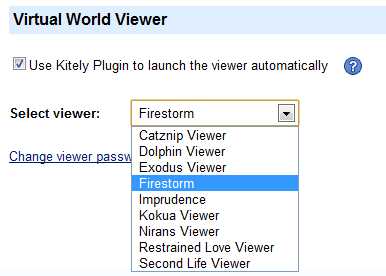
We’ve released Kitely Plugin version 2.0.0, which supports many more viewers than before. We now support automatically starting the viewer with all of the following viewers:

Catznip Viewer
Dolphin Viewer
Exodus Viewer
Firestorm
Imprudence
Kokua Viewer
Nirans Viewer
Restrained Love Viewer
Second Life Viewer

Download Firestorm from World Pages

When Kitely Plugin is installed, if no supported viewer is detected then we show a button called “Install Virtual World Viewer”. This button lets the user download a default viewer, Firestorm, directly from world pages. In the past Imprudence was the default viewer. However, Imprudence doesn’t support new features such as Media-on-a-Prim and meshes so we decided to change the default viewer to Firestorm.

Change Viewers From the Settings Page

It is now possible to select which viewer Kitely Plugin will start. This is done from the Settings page in your account. The list of viewers that you will see includes only viewers that you’ve installed on your computer. Please note that the plugin only detects a viewer if it’s installed in the default location that was suggested by the viewer’s installer. Therefore, we recommend that you always install viewers in their default path.

Select Viewer

This feature was highly requested by our users. In the past it was possible to select the viewer Kitely Plugin will start by modifying a configuration file. However, this was error-prone and complicated. We’ve therefore removed support for that configuration method and added the list of viewers instead.

Start Viewers Manually

You can now enter Kitely worlds by starting your viewer manually, without using Kitely Plugin. This is useful if you can’t install Kitely Plugin (e.g., because you’re on Linux), or if you want to use a viewer that Kitely Plugin doesn’t support.

Here’s how to use this feature:

  1. Add Kitely to your viewer’s grid manager. See our viewers page for details.
  2. Go to a World Page and click “Enter World”.
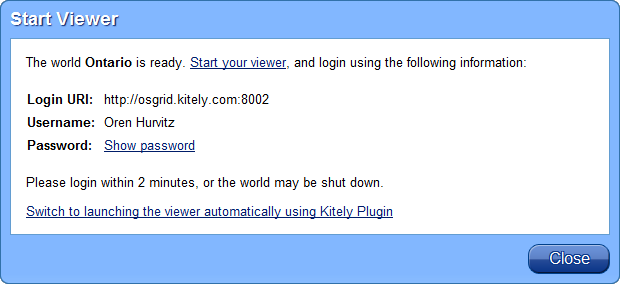
  3. Once the world is ready, you’ll be asked to start your viewer (see screenshot below).
  4. Start your viewer; select Kitely in the grid manager; enter your login information; and click “Login”.
  5. You will then enter the world!

Start Viewer Manually

Use Kitely Without Facebook

We are excited to announce that Facebook is no longer required in order to use Kitely. We now support two of the virtual world community’s most commonly requested alternative login options: using a Twitter account and using an email and password. We still support Facebook logins as well, but you are no longer required to use them.

Create an account using Twitter

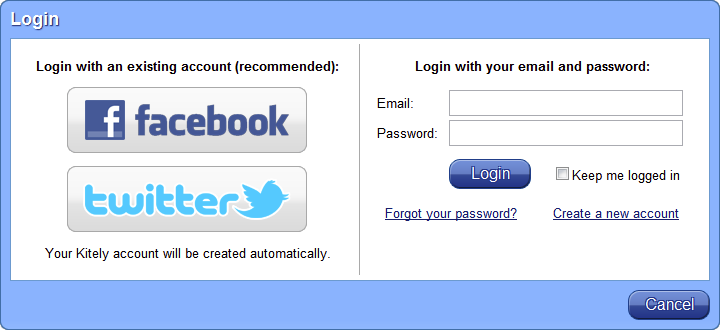
Our new login dialog looks like this:

Click on the Twitter button to connect your Twitter account to Kitely.

Your Twitter account affects Kitely in several ways:

  • You can login to Kitely using Twitter.
  • Your name will be linked to your Twitter profile in places such as World Pages and the History table, so that people can see who you are and perhaps follow your tweets.
  • You can use Twitter to restrict who may visit your worlds, if you wish. For example, you can allow only your Twitter followers to enter your worlds, or choose any Twitter List that you subscribe to.

(As a reminder, a similar option exists for Facebook users as well, using your Facebook Friends and the Facebook Groups that you belong to.)

UPDATE March 18, 2015: Facebook will soon stop providing the list of groups their users belong to, so we removed the option of using Facebook Groups for world access control.

Create an account using Email and Password

If you don’t want to use either Facebook or Twitter then you can create an account using an email and password. In the login dialog, click Create a new account and enter your details.

Please note that we recommend using Facebook or Twitter to create accounts, because they allow you to use Facebook Friends and Twitter Lists to manage world access controls. An Email/Password account doesn’t have these options, so it’s less flexible in managing world permissions. In addition, Facebook and Twitter accounts are more secure because they don’t require you to create and remember another password. If you are considering creating an Email/Password account because you don’t want your real identity to be known then we recommend creating a new Twitter account instead: you can hide your real identity that way as well, and you will still have access to all the great features that are only available to Facebook and Twitter users. Nevertheless, if you don’t want to link your Kitely account to an external account then you no longer have to do so.

If you create an Email/Password account then you won’t have a profile image initially, because we get those images from Facebook and Twitter. (The profile image appears in the World Pages of worlds that you create.) However, you can add a profile image by creating a Gravatar. Gravatars are a widely used standard for linking an image with an email address.

OSSL Functions Enabled

We now allow the use of some OSSL scripting functions. These are scripting commands specific to OpenSim (they’re not available in Second Life). We’ve set the “threat level” to Low, so the following function groups are available: None, Very Low and Low.

Billing System Finally In Place

After several postponements, and getting many suggestions from the community, we’ve finally rolled out our billing system today. This is a major milestone for Kitely because it puts us on the path to financial sustainability. To our users, this provides the assurance that you will be able to have all the resources you need to create and build your virtual worlds, without having to contact us every time you run out of KC.

Over the many months we’ve been in beta, people have frequently inquired regarding monthly subscriptions, free options and unlimited plans. We’ve worked hard to accommodate all of your wishes in a way that works with our business model. We hope you will be pleased with our solution.

Minutes and Kitely Credits

There are now two forms of currency: Minutes and Kitely Credits.

Minutes are used to pay for the time you spend inside virtual worlds. For each minute you spend in a world we subtract one Minute from your account. Your Minutes are non-transferable and can’t be shared with other users.

If you run out of Minutes then you can continue visiting virtual worlds if you have KC in your account: when that happens, for each minute you spend in a world we subtract one KC from your account. If you run out of both Minutes and KC then you can no longer visit virtual worlds (except for worlds made available for free access by other Kitely users, see details below).

Kitely Credits (KC) are used to pay for various services, such as copying and exporting worlds. In the future, we will enable you to use KC for virtual commerce as well.

You get Minutes and KC by subscribing to a monthly plan, or by buying KC separately. These methods are explained below. In addition, you can earn free Minutes by bringing in new users to Kitely (see details in our FAQ).

Monthly Plans

Each user has a monthly Plan. The plan determines how many Minutes and KC you get each month. KC accumulate from one month to the next. Minutes do not accumulate between months: they are reset at the beginning of each month.

Each plan also includes a certain number of free worlds that you can create. Each additional world you create beyond your plan’s quota costs 1 KC per day.

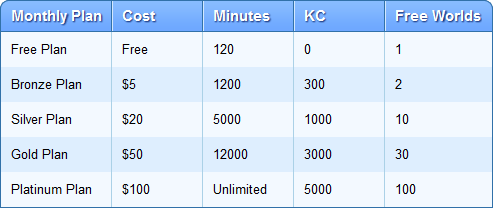
New users are automatically placed on the Free Plan. This plan includes 120 Minutes per month and 1 free world. This means that anyone can start creating their own virtual world on Kitely without having to take out their wallet and, if they are casual users, they can continue to have their own virtual world on Kitely for free. In addition, it means world creators can advertise their world widely and be assured that new users will always be able to visit the world, at least at first.

For those people who spend hours on end inside virtual worlds we now offer our Platinum Plan. This plan includes an unlimited number of Minutes per month, 5000 KC per month (an amount which would cost you $20/month to buy separately), and 100 free worlds. If you’re an avid virtual world user, or would like to provide free access to many other users, this plan provides the best value for your money.

Here are all of our available plans:

To change plans, go to the My Worlds tab, click on Get Credits and then click on the plan you want to use.

Buying Kitely Credits

You can also buy KC separately, regardless of which plan you are using. This is useful if you need more KC in the middle of the month, or if you want to try Kitely before signing up for a premium plan.

You can buy KC for the following prices:

1,000 KC – $5
5,000 KC – $20
15,000 KC – $50

To change plans, go to the My Worlds tab, click on Get Credits and then click Buy Credits.

Enabling Other Users to Access Your Worlds for Free

Normally, visitors to your worlds are charged Minutes out of their personal accounts, and you pay nothing. However, if you wish, you can enable other users to visit your worlds for free by covering this charge yourself. To do so, Edit the world, switch to the Access tab and set the price for the group of people you would like to subsidize to Free. When you do so, the selected group of visitors will pay nothing to visit that virtual world: instead, 1 KC per visitor will be deducted from your balance each minute that they remain in that world.

History Table

The history table has been enhanced to show how many Minutes and/or KC each event had cost you so you’ll be able to track how things were paid for.

Effect on Existing Users

Now that the billing system is in place we will no longer top-off people to 1,000 KC each week, as we had done previously. All the previous KC we had given out since March 2011 have been expired, and all user accounts have been automatically placed on the Free Plan.

In addition, we gave a one-time bonus of 50 KC to each of our existing beta users. These KC aren’t part of the Free Plan; new users will not get them.

Future Plans

We intend to allow using KC for virtual commerce in the future.

We are also considering allowing the conversion of KC to real-world money. However, this is difficult for both legal and regulatory reasons, so we’re not yet certain that we will do so. Please let us know what you think about this in the comment section below.

Final Words

Our billing system is sophisticated and supports many features: real-time billing (to support visiting worlds); subscriptions; two currencies; and more. Please let us know if you encounter any problems and we’ll fix them promptly.

We’ve been developing Kitely using our own personal savings for more than 3 years now. We rely on your support to allow Kitely to continue to exist, and to enable us to push the envelope in terms of what can be done with virtual worlds. If you enjoyed using our service until now, would like to use us in the future, or  just wish to support our efforts then please subscribe to one of our monthly plans (or buy some KC).

Thank you! 🙂

Happy Holidays: Kitely Supports Vivox Voice!

We have an exciting announcement: Kitely now supports voice! All Kitely worlds are now voice-enabled using Vivox, which has the best virtual worlds voice implementation in the market. This means that, without installing any additional software, you can switch voice on in your viewer to enable other people to both hear you with high quality positional audio, see your avatar’s lips move when you talk and see speaker indication graphics above your avatar’s head. This new feature is absolutely FREE for all Kitely users.

Using Voice

The following screenshots are from the Second Life Viewer, but other viewers have similar dialogs.

To speak, click the “Speak” button:

Speak

If the Speak button is disabled (and you have a microphone) then the world manager might have disabled voice. Worlds where voice is disabled display the following icon at the top of the viewer:

Voice Disabled

In this case, you will not be able to speak in the world until the world manager enables voice. However, you can still use private calls (see below).

Private Calls

In addition to the public voice channel (which everyone can hear), you can also initiate a private call to another user. This creates a conversation that only the two of you can hear, and it works even if voice is disabled in the world. To initiate a private call, right-click the other person’s avatar and select “Call”.

Enabling Voice in Your World

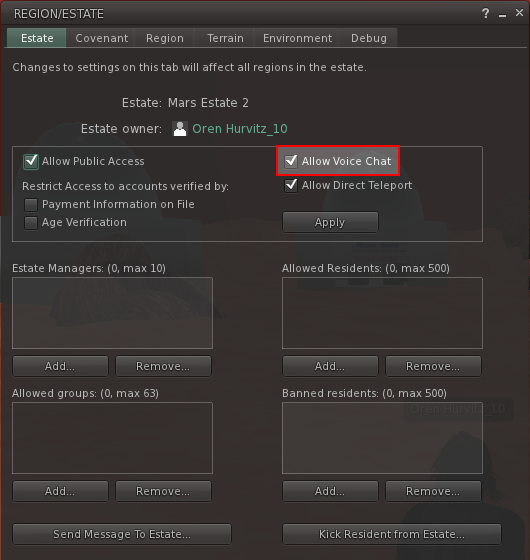
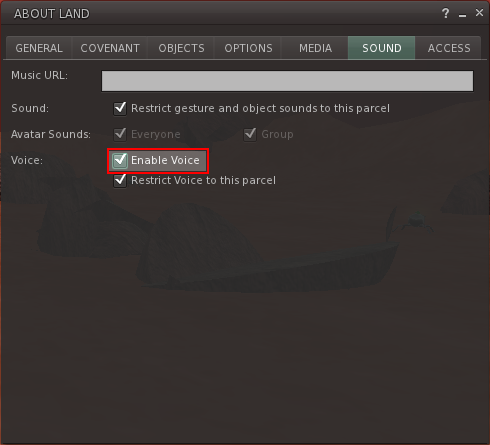
If you are a world manager, and voice is disabled in your world but you want to enable it, then you need to make sure two checkboxes are checked:

1. Enable voice in the Estate.

From the menu, select: World > Places Profile > Region/Estate

Enable voice in the estate

2. Enable voice in the Parcel.

From the menu, select: World > Places Profile > About Land

Enable voice in the parcel

After you have enabled both of these checkboxes, the world will allow voice to be used. Now there’s something to talk about! (Sorry, I couldn’t resist…)

Happy holidays! 🙂

Improved Search, Permanent URLs and Introduction Slideshow

We’ve updated our service with many backend optimizations and several user facing improvements which you may find useful.

Improved World Ranking in Search

We improved the way we sort worlds in the Public Worlds tab: we now take into account the number of Facebook Likes the world has, and other parameters which indicate that users will find the world engaging. This change makes it easier to find high-quality worlds.

Despite this algorithm update, other factors still take precedence when sorting worlds: the text the user searched for (if any); the number of visitors in the world; and whether the world manager covers the visitors’ access costs or visitors pay for their own usage.

Sharing Search URLs

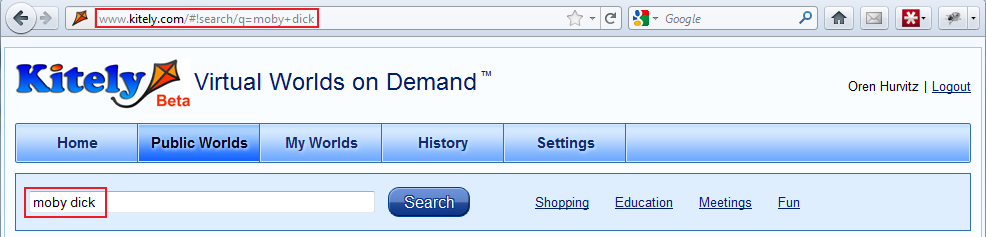
When you search for worlds in the Public Worlds tab, the URL now changes to include your search terms. This allows you to share the search with other people. For example, you can search for your own name, and then include that URL in your blog. Anyone who clicks on it will see the public worlds that you’ve created.

Permanent World URLs for Sharing

We changed the way sharing on Facebook, Twitter, Google+ and LinkedIn works. Sharing a world means sharing its URL. Previously, the URL that was shared was the URL that you saw in your browser, which includes your name and the world name. For example: https://www.kitely.com/virtualworld/My-Name/My-World. However, this was a problem if you renamed your world, because then the URL changed as well, so all of your Likes and Tweets were lost (the counter was reset to zero). To fix this, each world now has a permanent URL, which includes the world’s internal identifier instead of its name. The permanent URL never changes, even if you rename the world, so the number of Likes and Tweets will continue accumulating.

Unfortunately, this means that all of the Likes and Tweets that you’ve accumulated until now no longer count, because they were done on the old URL, not the new permanent URL. We apologize for this, but it seems better to make sure that Likes and Tweets will accumulate forever from now on, rather than having them reset to zero at some time in the future.

Note that the links you’ve already shared continue to work: anyone who sees one of these Likes or Tweets and clicks on them will still get to your world; it’s only the counter that doesn’t take these old Likes and Tweets into account.

Introduction Slideshow

We added an introduction slideshow that explains how Kitely works. This makes it easier for new users to quickly understand how Kitely can benefit them. If you are reading this blog then you probably already know how Kitely works, but we encourage you to view the slideshow anyway (it’s on our homepage); we spent a lot of time creating it and we think it’s pretty cool!

Thank you to everyone who agreed to have their names show up in these screenshots, and a special thanks to Karima Hoisan who agreed to pose for a couple of screenshots with her beautiful avatar.

Optimizations

The largest change in this release is actually not user-visible: we’ve made important changes internally to make the service faster, and in preparation for adding billing.